
22 Oct 2026 Oracle Analytics Cloud September 2026 Update Highlights
Oracle continues to enhance Oracle Analytics Cloud (OAC) with features that make it easier for users to build, share, and consume analytics. The September 2026 release focuses on expanding AI capabilities across dashboards and data preparation, bringing embedded analytics closer to the native OAC experience, and streamlining the workbook authoring experience.
As well as these updates, this release introduces a wide range of practical improvements, including new formatting options for tables, pivots, and legends, as well as public access links. In this post, we’ll take a closer look at five of the key features, starting with the AI enhancements: AI Descriptions to improve AI Assistant responses, expression filters created from natural language requests with the Expression Assistant, and the new options to configure how the Insights panel opens in a workbook. We’ll then cover the new interactivity options for embedded workbooks and the unified Design-to-Present authoring experience, explaining what they mean for both business users and developers.
Improved AI Assistant Responses Using AI Descriptions
AI Descriptions add semantic metadata to a dataset and its columns, and the AI Assistant uses a description when a question is semantically related to that dataset or column. Oracle recommends them for information that a name or a synonym cannot carry, such as units, value formats, or relationships between columns.
To test this, we copied the Sample Order Lines dataset and renamed some of its columns to short names. In our example below, Sales became Amnt, Profit became prft, Order Priority became prio, Customer Segment became sgmnt, and Ship Mode became ship_type. All the other columns kept their names. Each rename was added to the dataset as a Rename Column step (Figure 01), and the data panel shows the new names (Figure 02):
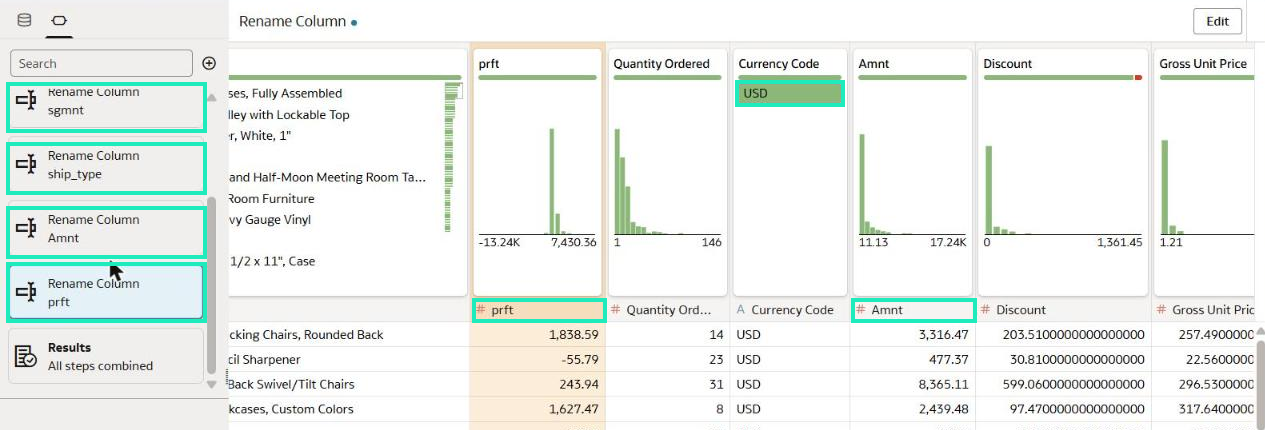
Figure 01: Rename Column steps in the dataset editor
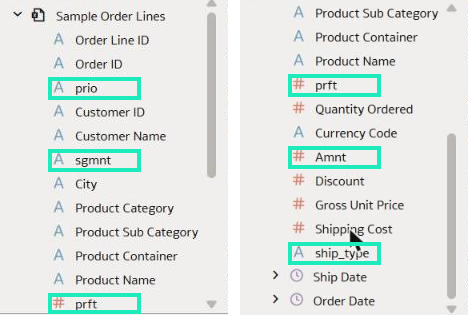
Figure 02: Renamed columns in the data panel
Next, open Inspect on the dataset and go to the Search page. Set Index Dataset For to Assistants, and Languages to English. In this example, the Scope tab showed Using Recommended Settings For Index, with all 21 columns indexed, and in the AI Descriptions tab the dataset description and every column description were empty, with no synonyms. Save the settings and click on Run Now.
Before Adding AI Descriptions
Now create a workbook on the dataset and ask your questions in the Assistant tab in the Insights panel. Before each question, click on Clear Assistant History to start a new conversation. This test used four questions that depend on business terms that are not explicitly defined in the data:
- “What is the total revenue from B2B customers?” returned “There is no data that can be used to answer your question.” (Figure 03, left).
- “What are the total sales of P1 orders?” returned an answer, but for the wrong data: “The sum of Total Sales for orders with product name containing p1 is 214,419.59.” The Assistant had filtered Product Name on the text “p1” (Figure 03, right):

Figure 03: Answers to the B2B and P1 questions before adding AI Descriptions
- “Which ship mode has the highest margin?” already returned a chart, titled “Highest Total Profit by Ship Type”, with Regular Air at 878,791.72, Delivery Truck at 279,478.90, and Express Air at 141,729.38 (Figure 04). The three values add up to 1,300,000, matching the prft total shown by Auto Insights in the workbook’s Insights tab:
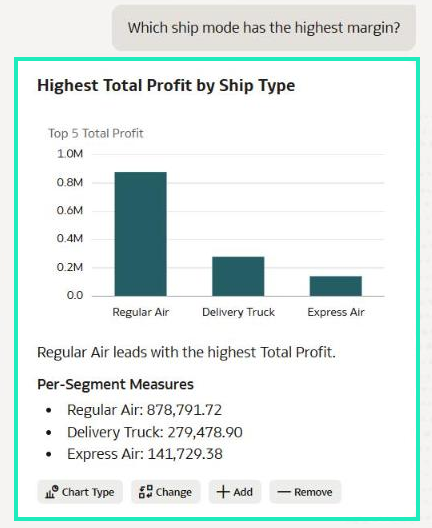
Figure 04: Answer to the margin question before adding AI Descriptions
- “What are the total sales of urgent orders?” returned “There is no data that can be used to answer your question.” The Assistant had filtered prio by the value urgent, which does not exist in the column (Figure 05):
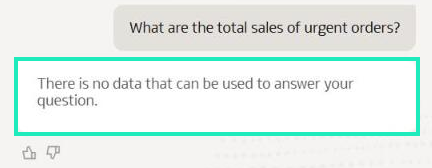
Figure 05: Answer to the urgent question before adding AI Descriptions
For comparison, the question “What is the total Amnt by sgmnt and by prio?”, which uses the column names directly, was also asked. This question worked: it returned a chart titled “Total Amnt by sgmnt and prio”, and the text gave Corporate at 3,040,035.94 as the largest segment.
Adding AI Descriptions
Back on the Search page, open the AI Descriptions tab and type your descriptions. The business rules used here were created specifically for this test: the data contains no P1 to P4 codes, no B2B flag, and no column called margin.
- In Dataset description, describe what each row contains and list the business terms explained in the column descriptions (Figure 06):

Figure 06: Dataset description
- For prio, the description lists its values and explains that the priority codes are not stored in the data: P1 means Critical, P2 means High, P3 means Medium, and P4 means Low. It also says that urgent orders are the Critical orders, and that a question about P1 or urgent orders needs the filter prio = Critical. For sgmnt, the description says that B2B customers are the Corporate and Small Business segments (Figure 07).
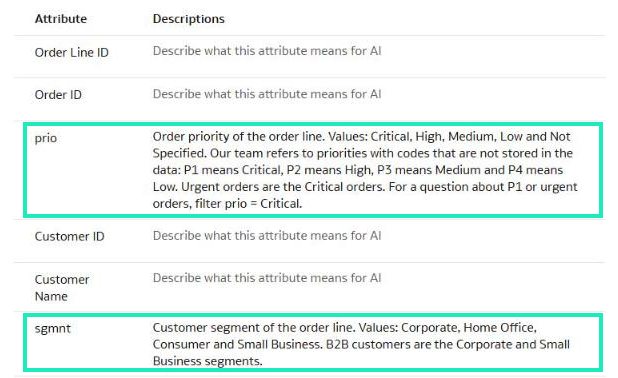
Figure 07: AI Descriptions of prio and sgmnt
- For the measures, Amnt is described as the sales amount in US dollars and is used for questions about sales or revenue, and prft as the profit, also called margin in this example. Before writing the currency, check in the dataset editor that Currency Code has only one value, in this case USD (see Figure 01). The values of ship_type are also listed (Figure 08):
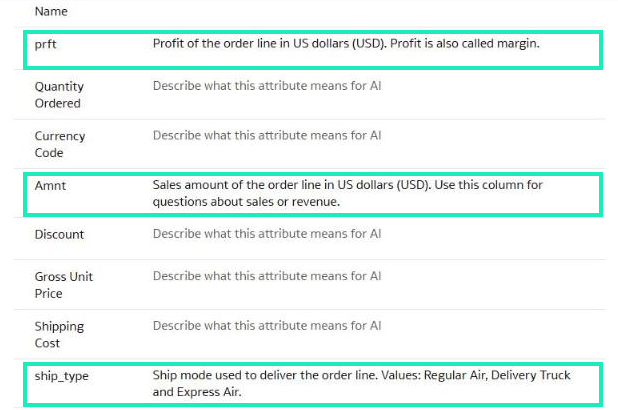
Figure 08: AI Descriptions of prft, Amnt, and ship_type
- Click on Save, then Run Now, and wait until Last Run shows the new run time.
No synonyms were added in this test, so the descriptions were the only changes made that could explain the different answers.
After reloading the workbook, the same questions were asked again.
After Adding AI Descriptions
The B2B question now returned “The sum of Total Revenue for sgmnt in Corporate and Small Business is 4,679,650.45.” The P1 question returned “The summed Total Sales filtered by prio in Critical is 1,589,966.08” (Figure 09):

Figure 09: Answers to the B2B and P1 questions after adding AI Descriptions
For the margin question, the chart title changed to “Regular Air has the highest Total Margin”, and the values were listed under “Margin by ship_type” (Figure 10). The three values were the same as before:
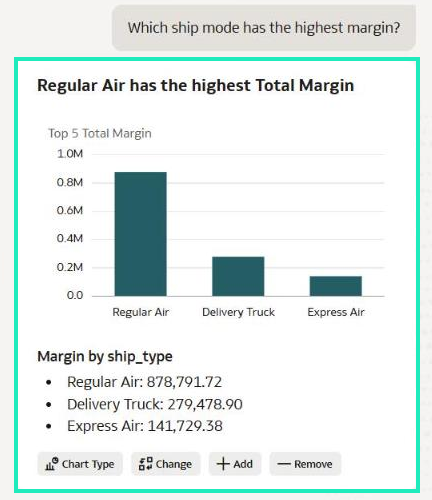
Figure 10: Answer to the margin question after adding AI Descriptions
The urgent question returned “The sum of Total Sales for prio in Critical is 1,589,966.08.” (Figure 11). The Assistant returned all four answers on the first attempt:
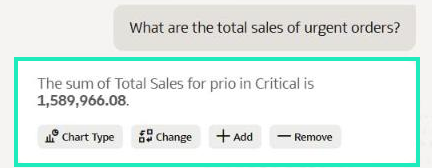
Figure 11: Answer to the urgent question after adding AI Descriptions
In this test, the answers to the B2B, P1, and urgent questions improved after the descriptions were added. Previously, the Assistant had returned no data or filtered the wrong column. The margin question returned the same values with and without descriptions, but the answer after the change used the word “margin”.
Filter Workbook Data More Easily Using Expression Assistant
With this release, workbook authors can create expression filters by typing or speaking a request in natural language in the Expression Assistant. The assistant generates the expression using fields from the selected data source, and is available for both workbook and visualisation filters.
This example uses a copy of a workbook based on the Sample Order Lines June 2026 dataset, with a bar chart showing Sales by Product Category and Product Sub Category.
- In the filter bar at the top of the canvas, click on the Add Filter (+) icon and select Create Expression Filter:
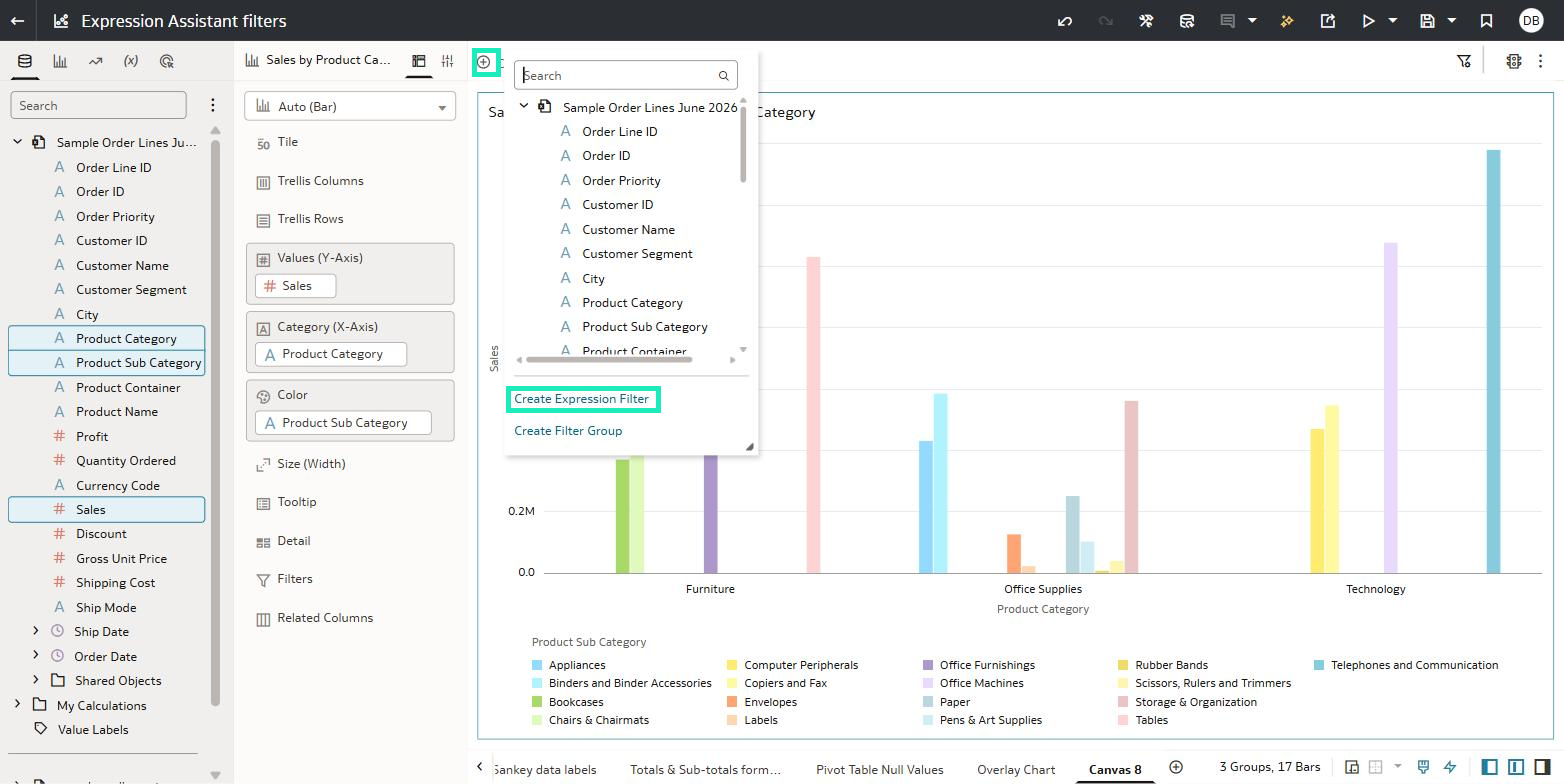
Figure 12: Create Expression Filter option in the filter bar
- The Expression Filter dialog opens; at the top you’ll see the Type an AI Request OR enter your code below field, together with a data source selector and a microphone icon to use voice instead of typing:
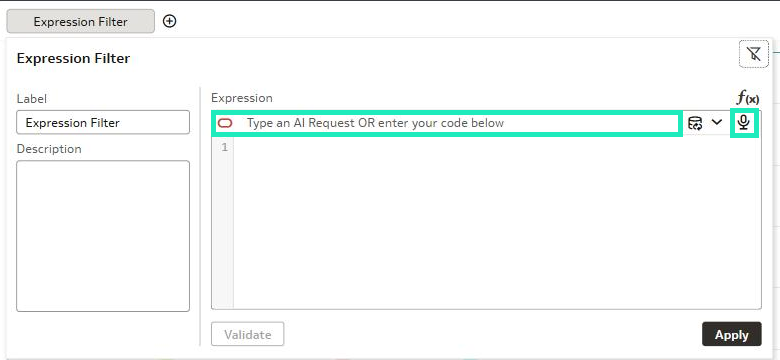
Figure 13: Expression Filter dialog with Expression Assistant
- Check the data source that the assistant will use. In this example, the workbook had two data sources, and Sample Order Lines June 2026 was selected:
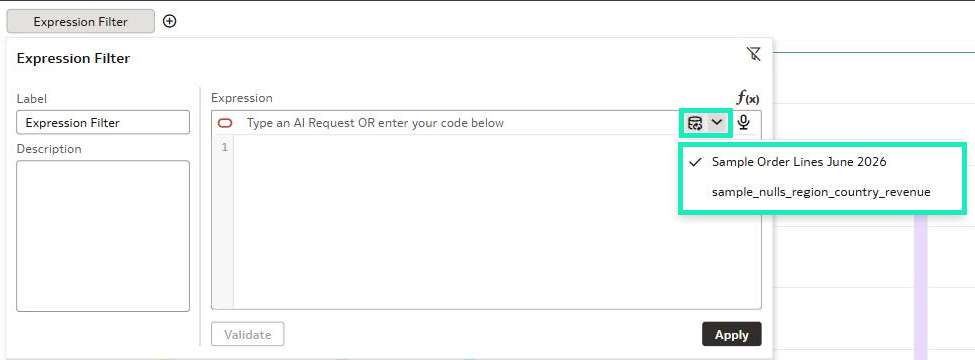
Figure 14: Data source selector
- Enter a Label for the filter, type the request and press Enter. In this example, the request was “orders with sales greater than 1,000 in the Technology category”:
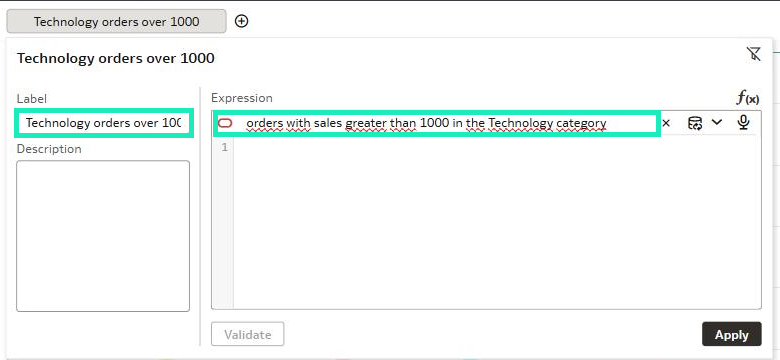
Figure 15: Natural language request
While the assistant is working, the editor shows Generating Code … and a Cancel option, shown below:
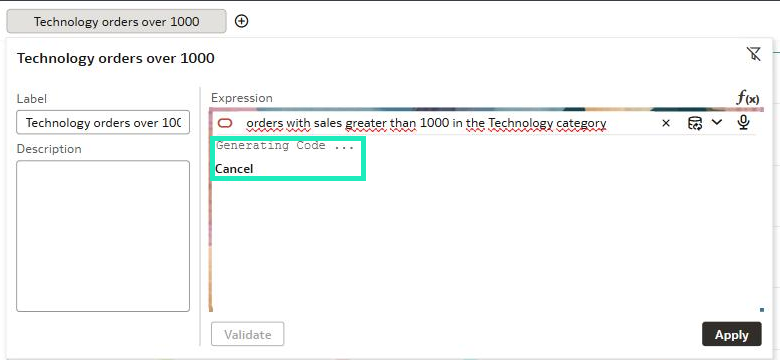
Figure 16: Expression being generated
- Review the generated expression and click on Apply:
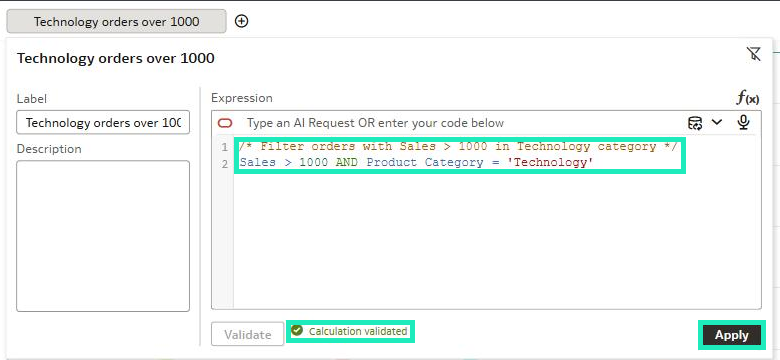
Figure 17: Generated expression
As you can see in Figure 17, the assistant wrote a comment describing the filter, followed by the expression Sales > 1000 AND Product Category = ‘Technology’, and the Calculation validated message appeared next to the Validate button. Oracle recommends always reviewing generated expressions before saving or applying them.
After applying, the filter is added to the filter bar with the label you entered, and in this example the chart only showed the Technology category with its four sub categories:
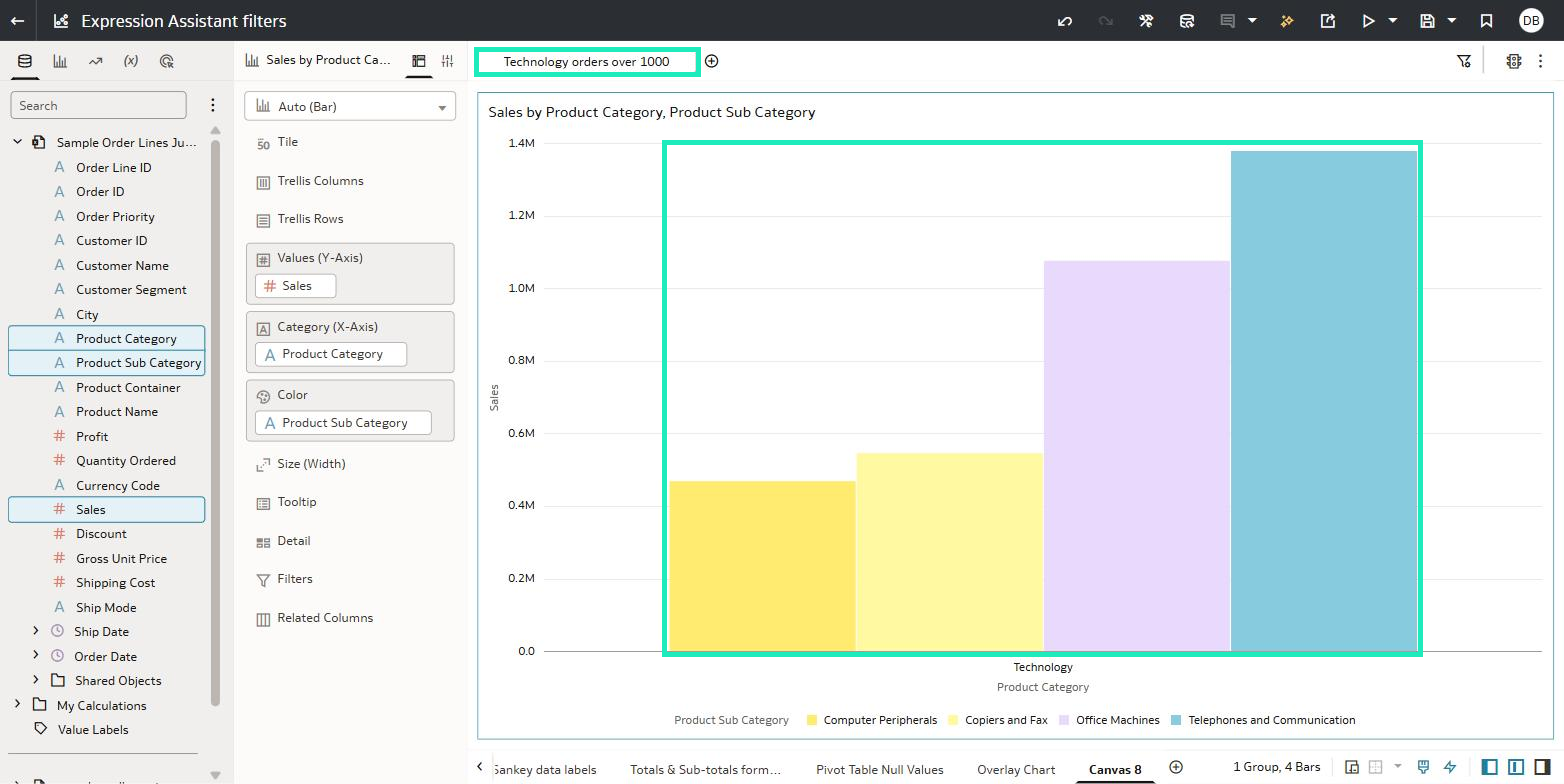
Figure 18: Chart filtered by the Expression Filter
Configure How the Insights Panel Opens in a Workbook
The Insights panel gives access to Watchlists, Insights, and the Workbook Assistant. With this release, workbook authors can specify whether the Insights panel opens by default when the workbook is opened, and each user can choose whether the panel overlays the workbook content or docks beside it in View mode.
This example uses a Sankey chart built on the Sample Order Lines dataset, which shows Sales and Profit by Customer Segment and Ship Mode.
Open the Insights Panel by Default
To configure this, open the workbook in Edit mode and follow these steps:
- Click on the arrow next to the Preview button in the top toolbar and select Configure Presentation:
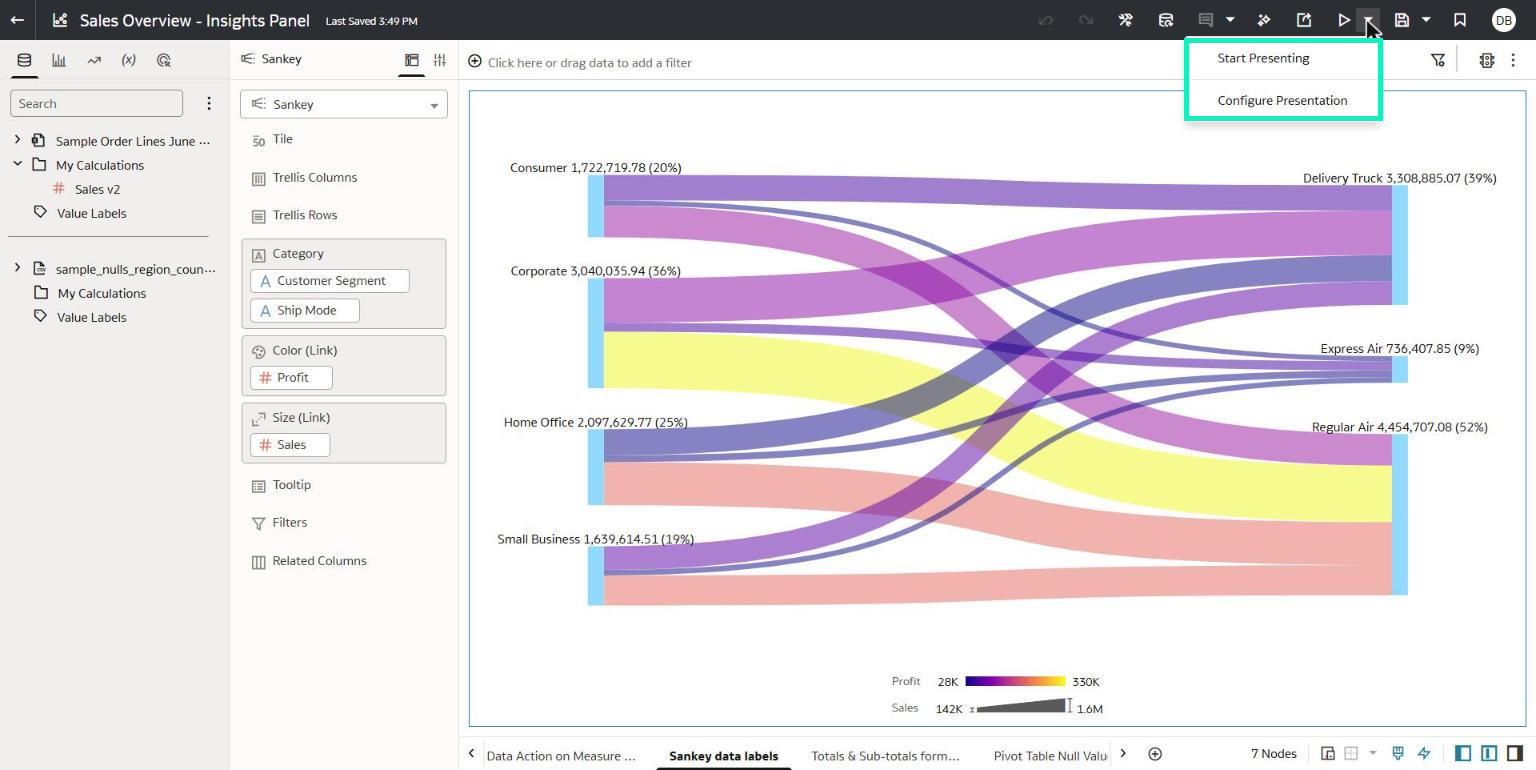
Figure 19: Configure Presentation option
- In the Workbook tab, scroll down to the Insights Panel section, where Watchlists, Insights, and the Workbook Assistant can be switched on or off.
- Switch on Open by Default and save the workbook:
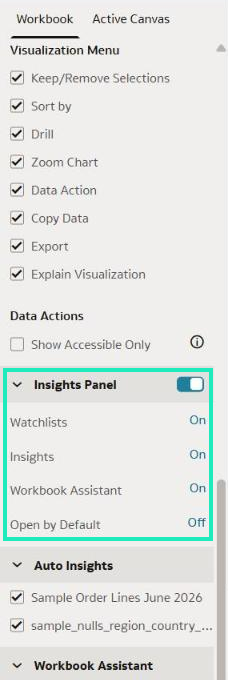
Figure 20: Insights Panel section
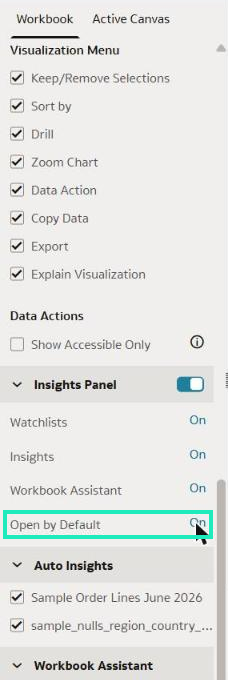
Figure 21: Open by Default enabled
Once the workbook has been saved, opening it in View mode displays the Insights panel automatically. In this example, Auto Insights also starts running on the configured dataset:
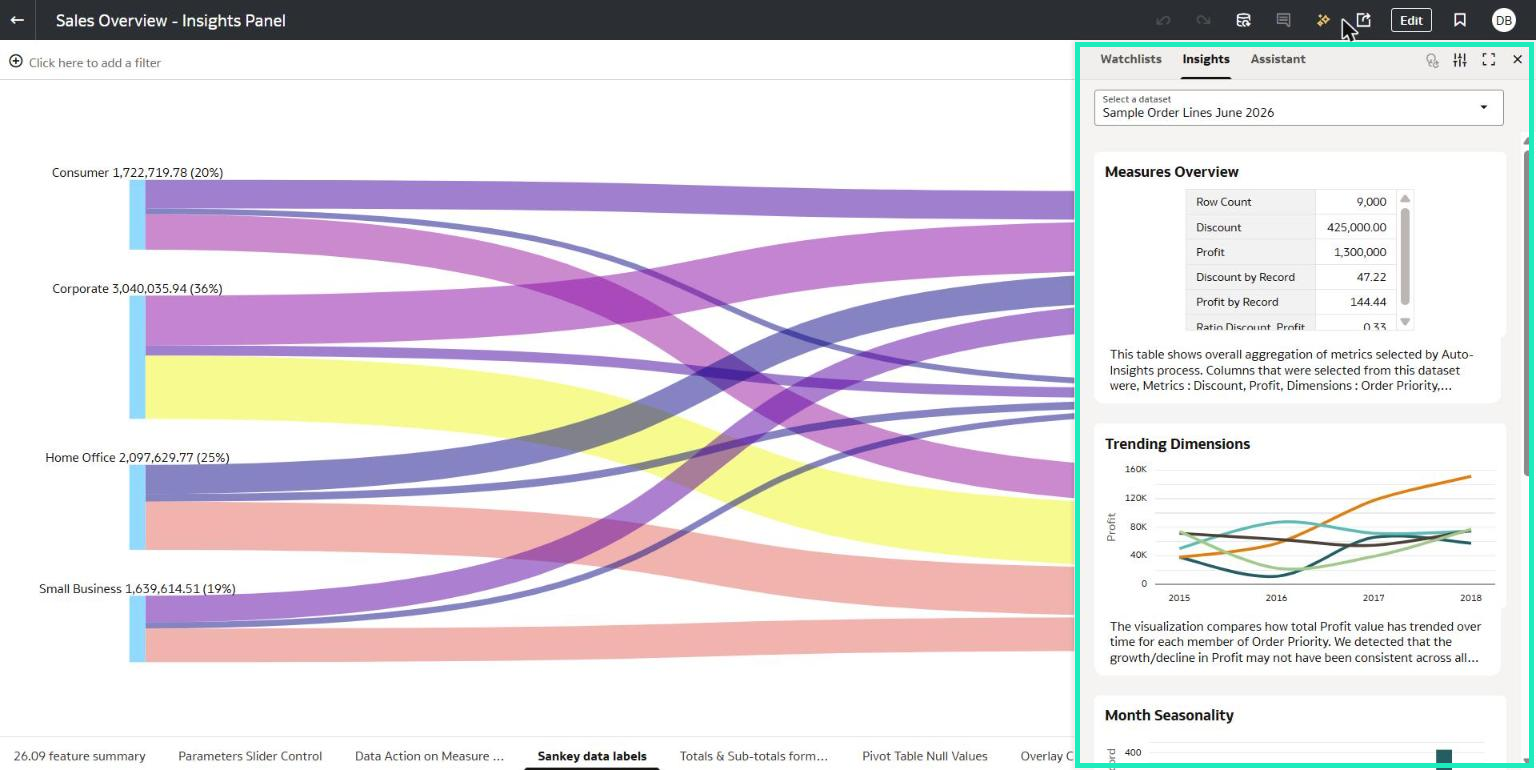
Figure 22: Workbook opened in View mode with the Insights panel displayed
In this case, the panel is shown as an overlay, covering the right-hand side of the Sankey chart.
Overlay or Dock the Insights Panel
This behaviour is not a property of the workbook, but a setting in the user profile, so each user can choose how the panel is displayed in View mode:
- Click on your user icon in the top-right corner and select Profile.
- Go to the Advanced tab and locate the Show Auto Insights as Overlay (Viewer) option, which is enabled in this example.
- Disable it and click on Save:
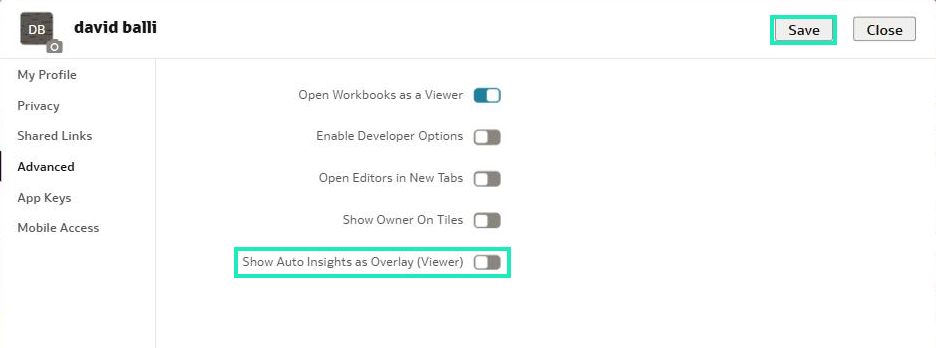
Figure 23: Overlay option disabled in the Advanced tab of the user profile
If you open the workbook again, the Insights panel is now docked on the right and the canvas is resized to fit the remaining space, so all the Sankey chart remains visible next to the panel:
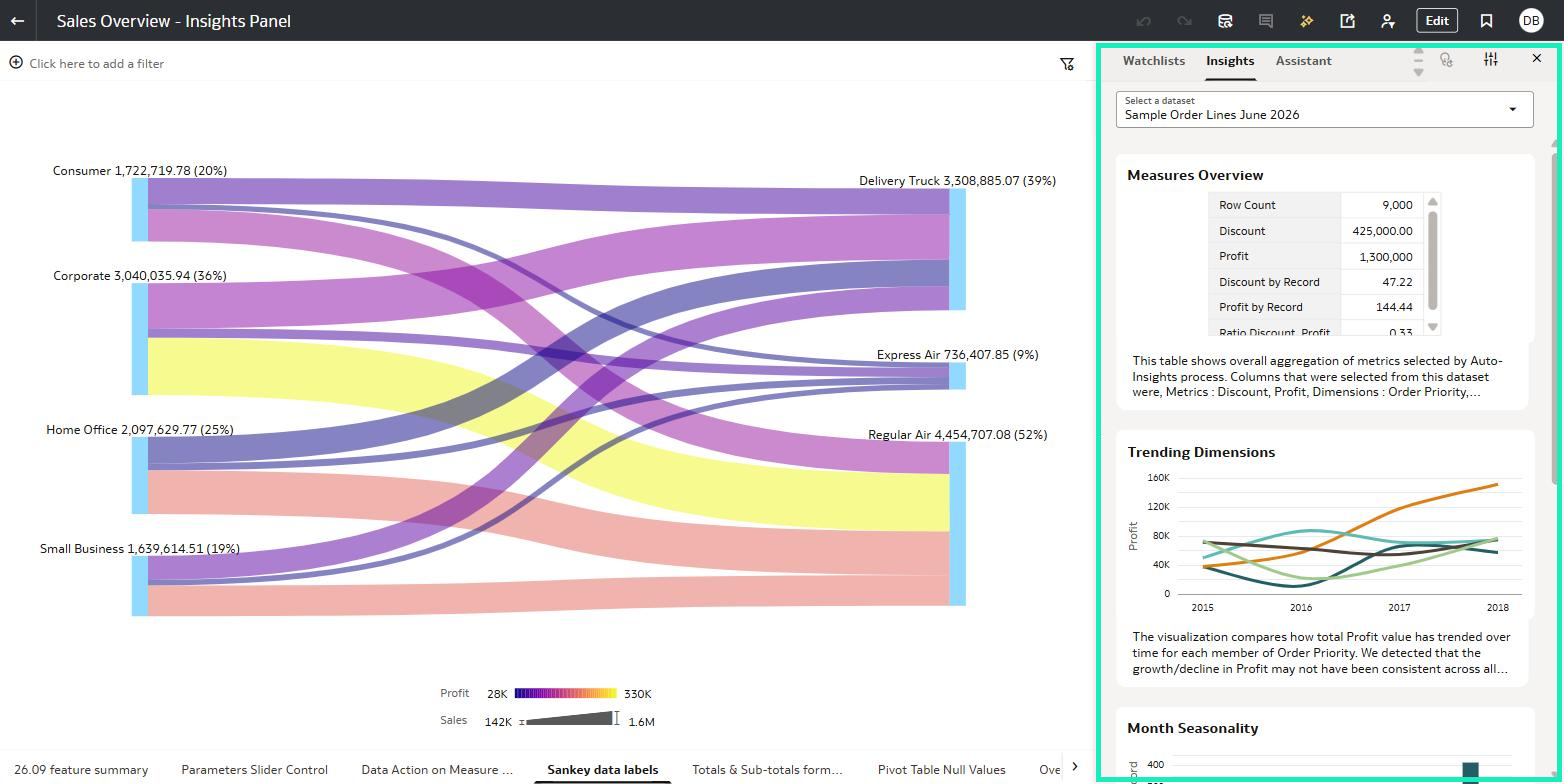
Figure 24: Insights panel docked beside the canvas
Embed Workbooks in External Applications
Many organisations want to bring analytics directly into the applications their users already work with, such as corporate portals, intranets, or custom web apps. OAC supports this through embedding, and this release with two new options that make embedded workbooks far more interactive: the header bar and the visualisation toolbar.
Previously, embedded workbooks often left users looking for familiar options such as refreshing or exporting the data. With these new options, the embedded experience becomes much closer to what users get within OAC itself. We already covered embedding in our Oracle Analytics Cloud November 2025 Update Highlights post, where we showed how to get the embedding code from the Developer option and how to use the AI Assistant in embedded content.
Generating the Embedding Code
OAC provides sample code that you can copy and paste into the HTML page of your application. For this example, we use an Ice Cream Sales workbook. First, enable the developer options:
- Open your user profile and go to the Advanced tab.
- Switch on Enable Developer Options and click on Save:
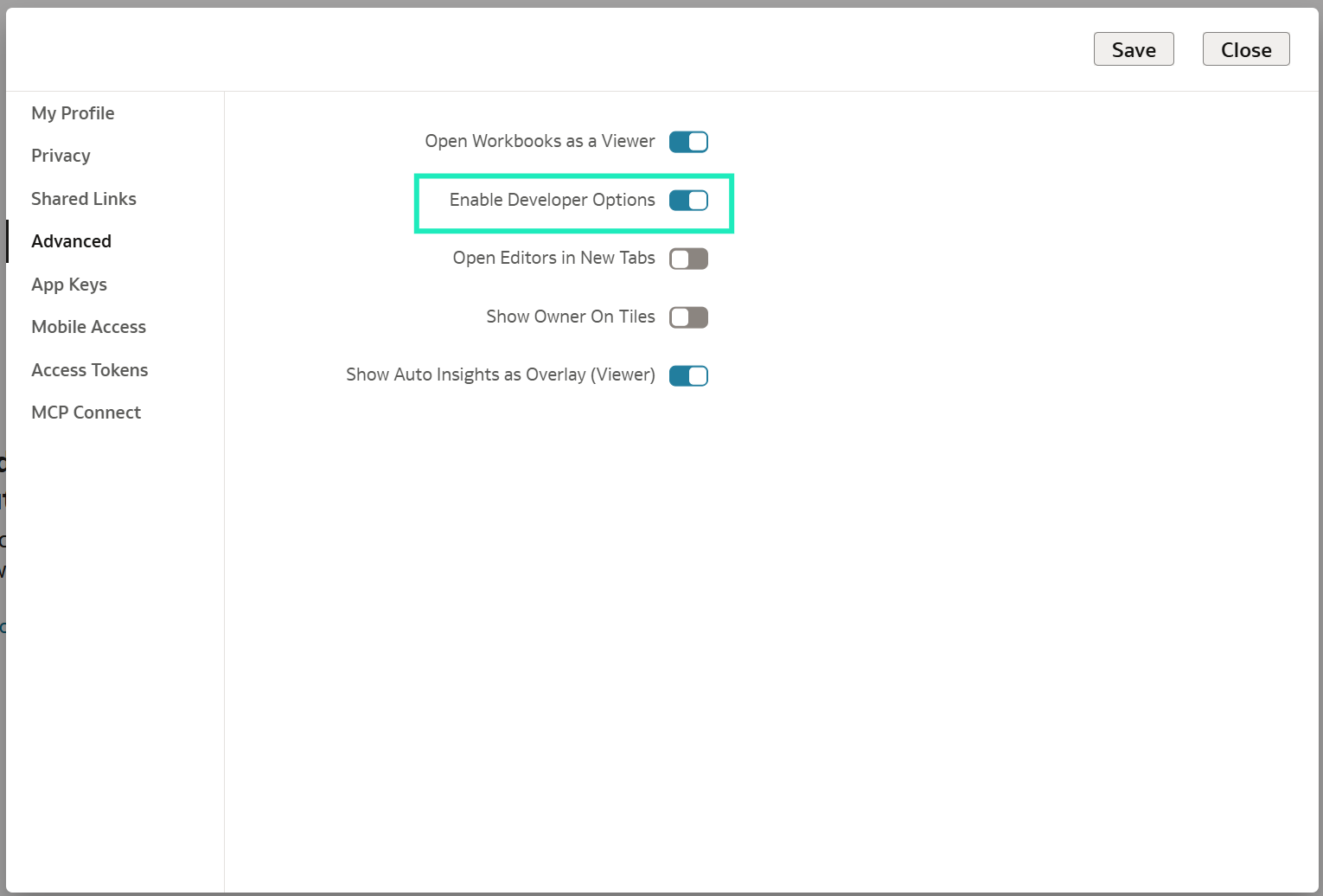
Figure 25: Enable Developer Options in the user profile
Next, open the workbook, click on the menu in the top-right corner, and select Developer:
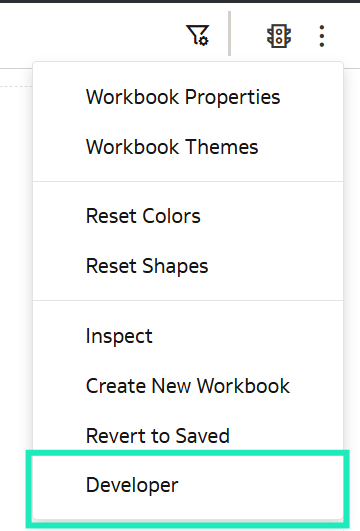
Figure 26: Developer option in the workbook menu
In the Developer pane, open the Embed tab, which contains all the code needed to embed the workbook:
- Under Scripts to Include, copy the required script tag into the head of your HTML page. This references the embedding.js file, which is downloaded when the embedded content is viewed in a web page. The path in the URL confirms that version 2 of embedding is being used.
- Select the canvas you want to embed from the Target Canvas drop-down list (leave it as Default to embed the active canvas).
- In Additional Attributes, choose the optional attributes you need (in this case, Project Options), and copy the resulting oracle-dv tag into a div in your HTML page.
- Copy the required script that applies the bindings once Oracle Analytics embedding is ready, then paste it after the oracle-dv tag:

Figure 27: Required embedding script in the Embed tab
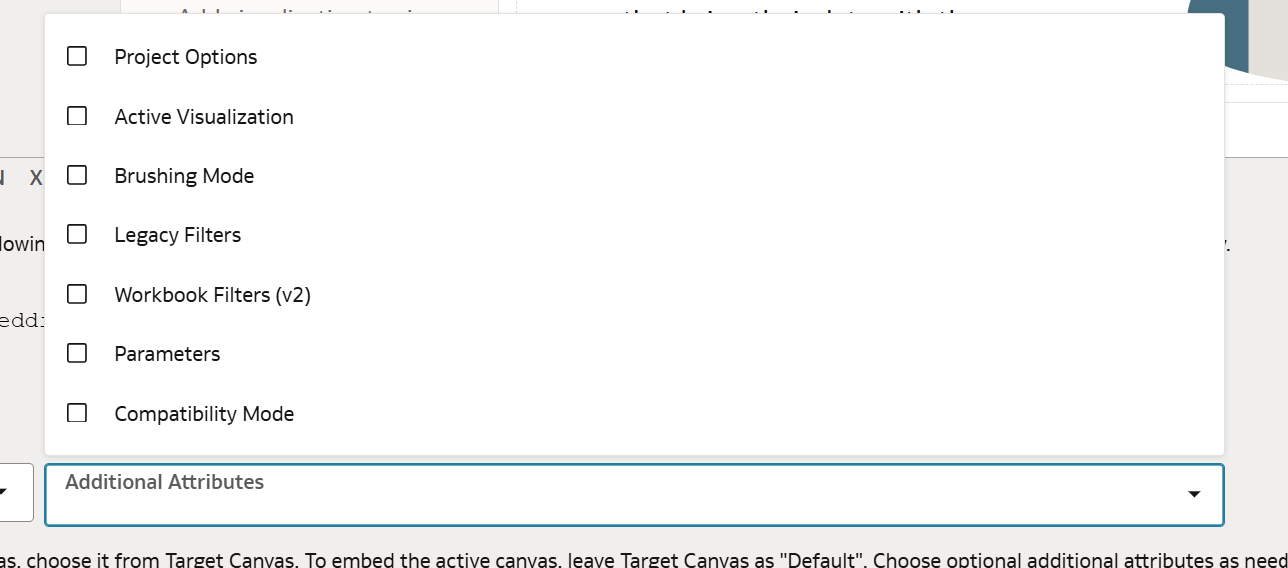
Figure 28: Additional Attributes available for the embedded canvas

Figure 29: Required script to apply the bindings
There are two authentication approaches relevant to this example:
- Browser session: Without a separate authentication step, embedding uses the current authenticated Oracle Analytics browser session, which is convenient for testing.
- Token authentication: An option commonly used in production applications. Include the optional token authentication script in the page head after the embedding script and define the getOACAuthToken function, passing an access token obtained through your own authentication mechanism.
The resulting oracle-dv tag contains the path of the workbook, the canvas to display and the selected project options, such as showFilterBar, showCanvasNavigation, and enableMobileLayout. Remember that the domain of the host application must also be registered as a safe domain allowed to embed OAC content. Once the page has been saved, opening it in a browser displays the workbook canvas inside your application.
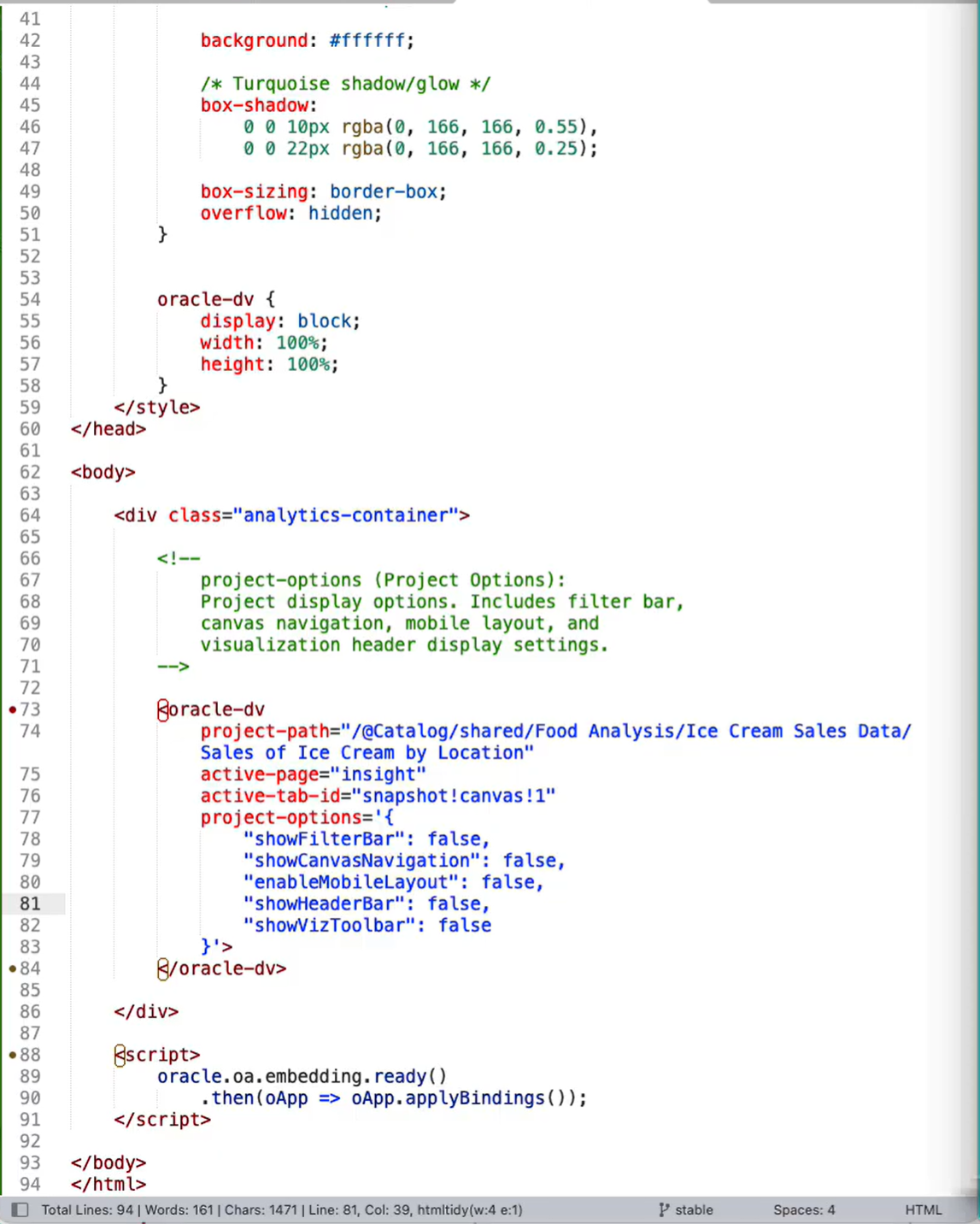
Figure 30: Sample HTML page with the oracle-dv tag and its project options
Showing the Header Bar and Visualisation Toolbar
Among the project options added to the embedding code (see Figure 30), you’ll find two new properties:
- showHeaderBar: Specifies whether the workbook header bar is displayed at the top of the embedded content.
- showVizToolbar: Specifies whether the floating visualisation toolbar is displayed when users hover over a visualisation.
In this example, both properties are initially set to false. Set them to true, save the HTML page, and reload the embedded content. A header bar now appears at the top of the workbook, offering the option to refresh the data, and when you hover over a visualisation, a floating toolbar lets you export it, view it in full screen, and access further actions.
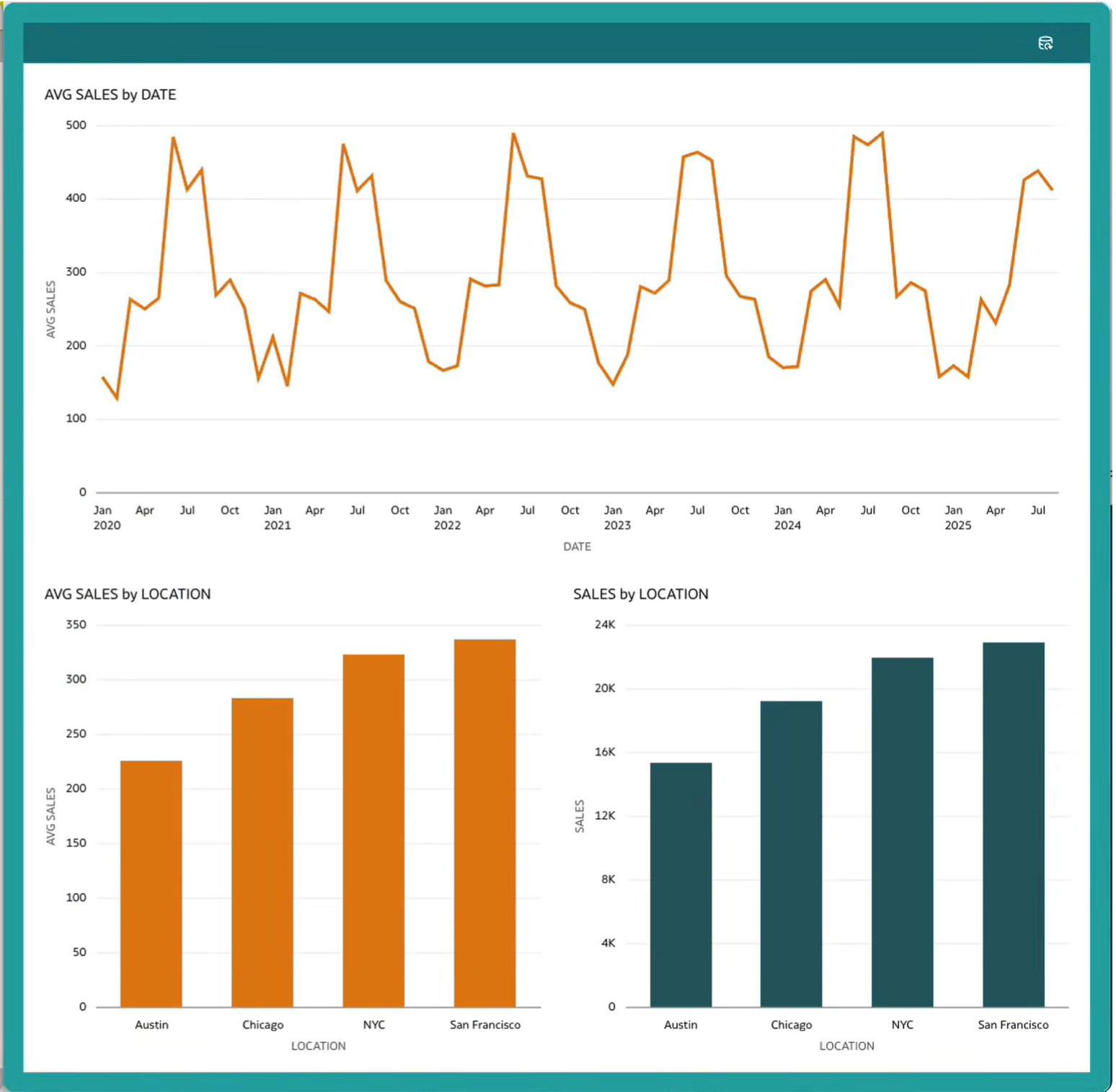
Figure 31: Embedded workbook with the header bar showing the Refresh Data option
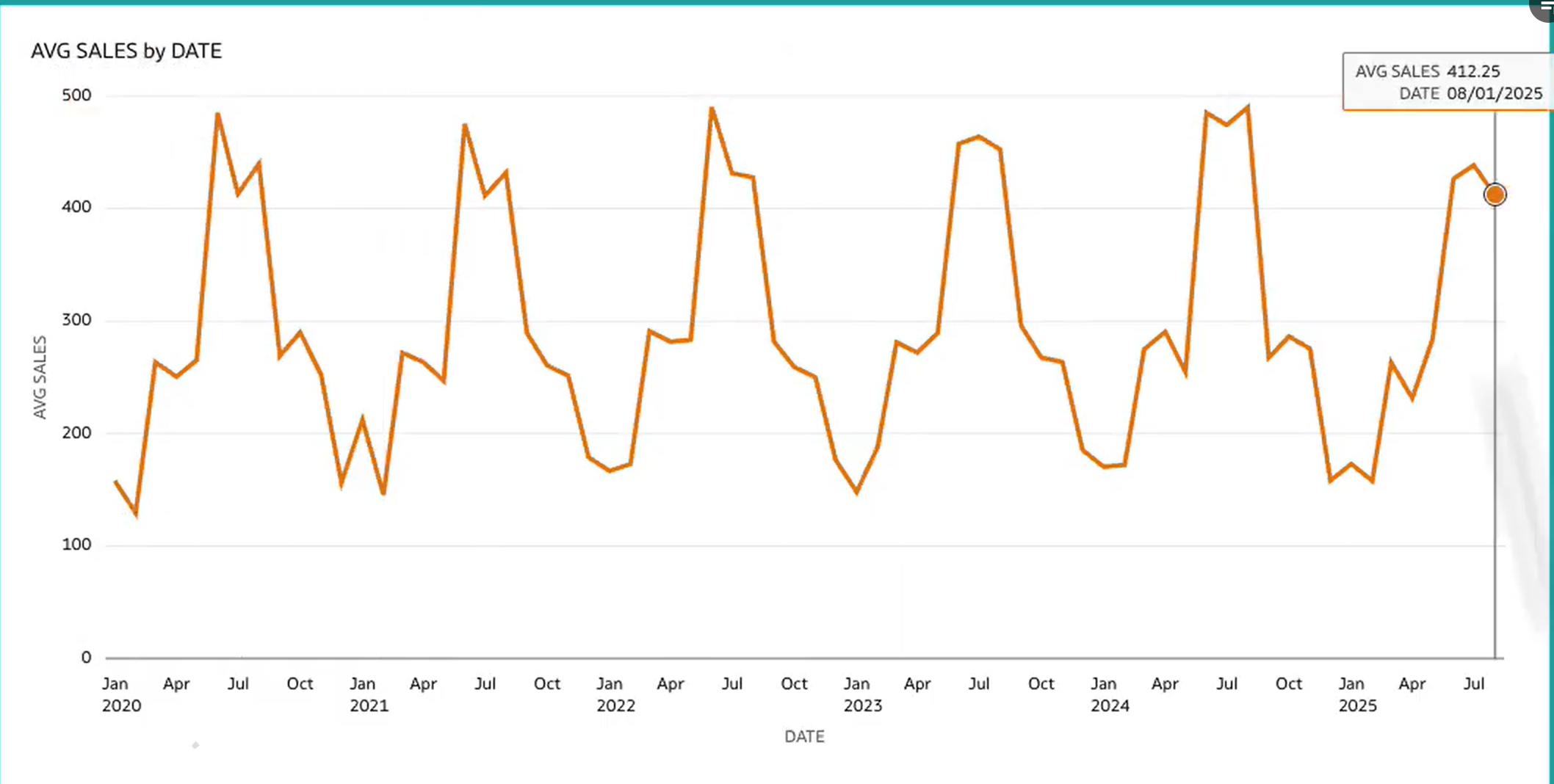
Figure 32: Hovering over a visualisation in the embedded workbook
Controlling Embedded Options from the Present Workspace
The options displayed in the header bar and the visualisation toolbar are fully configurable from OAC:
- Open the workbook and select Configure Presentation from the Preview menu.
- In the left-hand pane, use the Header toggle to turn the header on or off and, under Background, set the fill colour.
- Use the Toolbar toggle and checkboxes to choose the options displayed, such as Undo/Redo, Refresh Data, Notes, Export, and State Menu.
- You can also enable the Insights panel. Auto Insights and the Workbook Assistant can be configured separately, and the Workbook Assistant can optionally use an AI agent.
- Save the workbook and reload the embedded content:
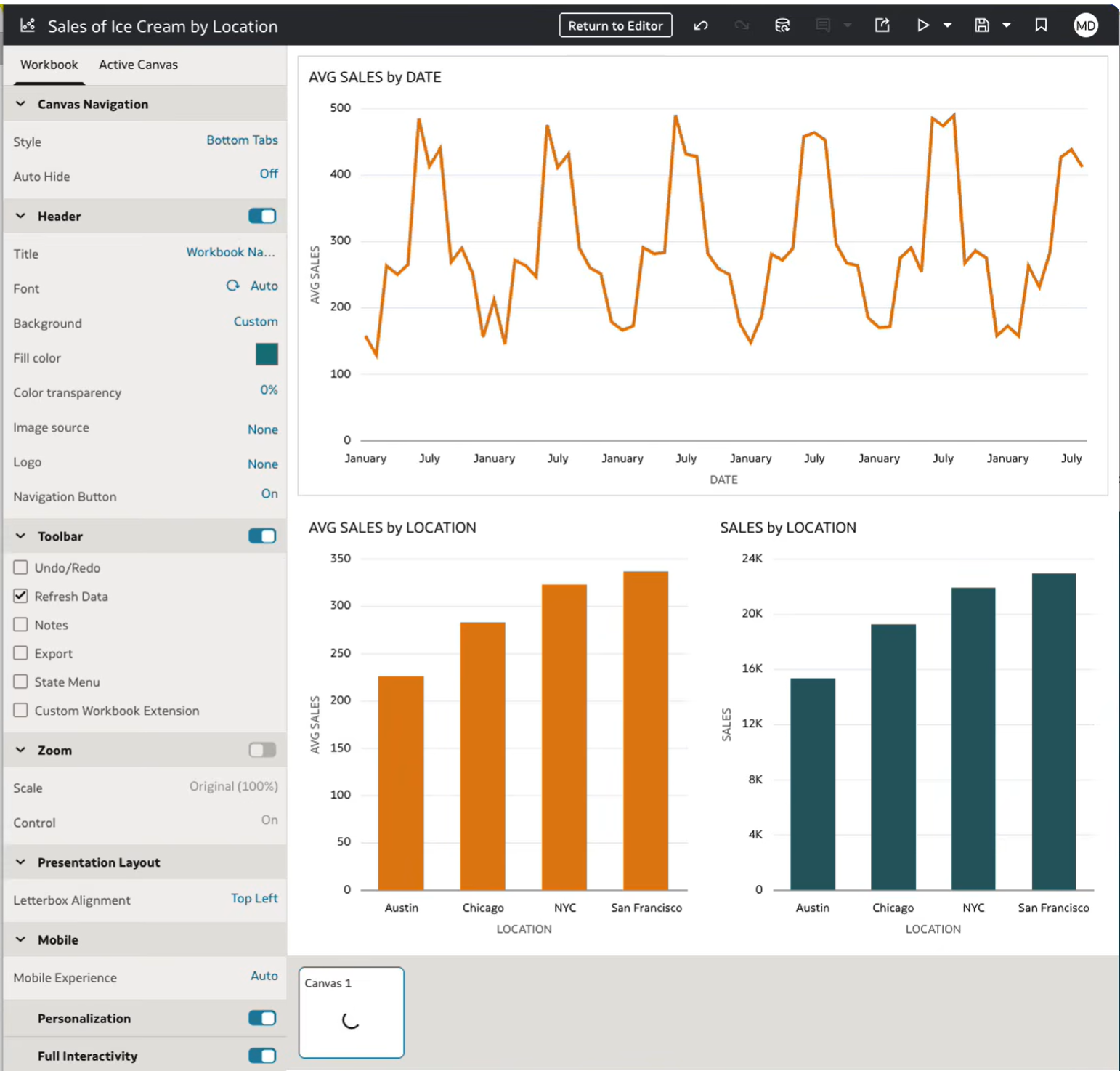
Figure 33: Header and toolbar settings in the Present workspace
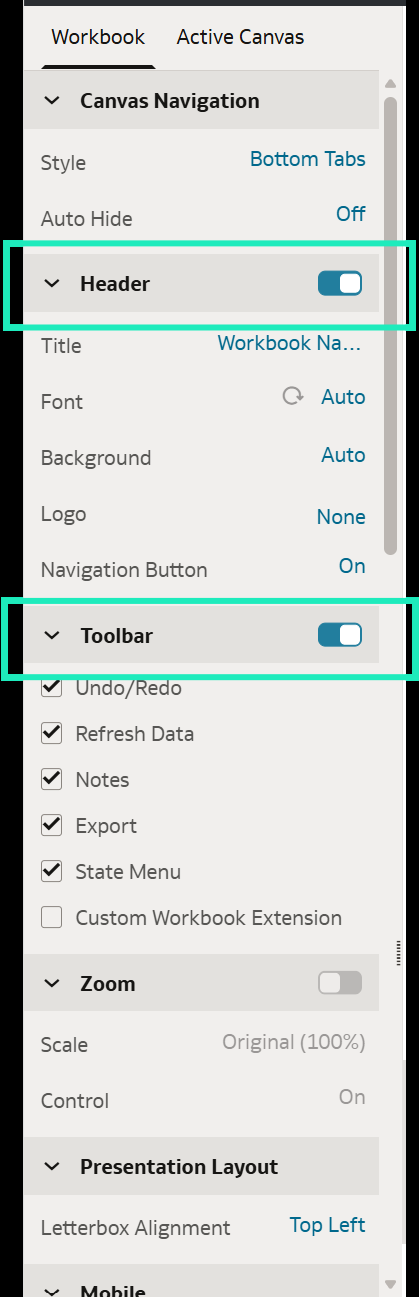
Figure 34: Header and toolbar enabled with additional toolbar options selected
It is important to note that the presentation configuration is the source of truth. If the header is disabled in the Present workspace, setting showHeaderBar to true in the embedding code will not override it, giving workbook authors the final say on what embedded users can do.
After reloading, embedded users can see any notes added to the visualisations, use the export options, and even ask the AI Assistant questions in natural language, such as “Which temperature sells the most ice creams?” directly from the host application:
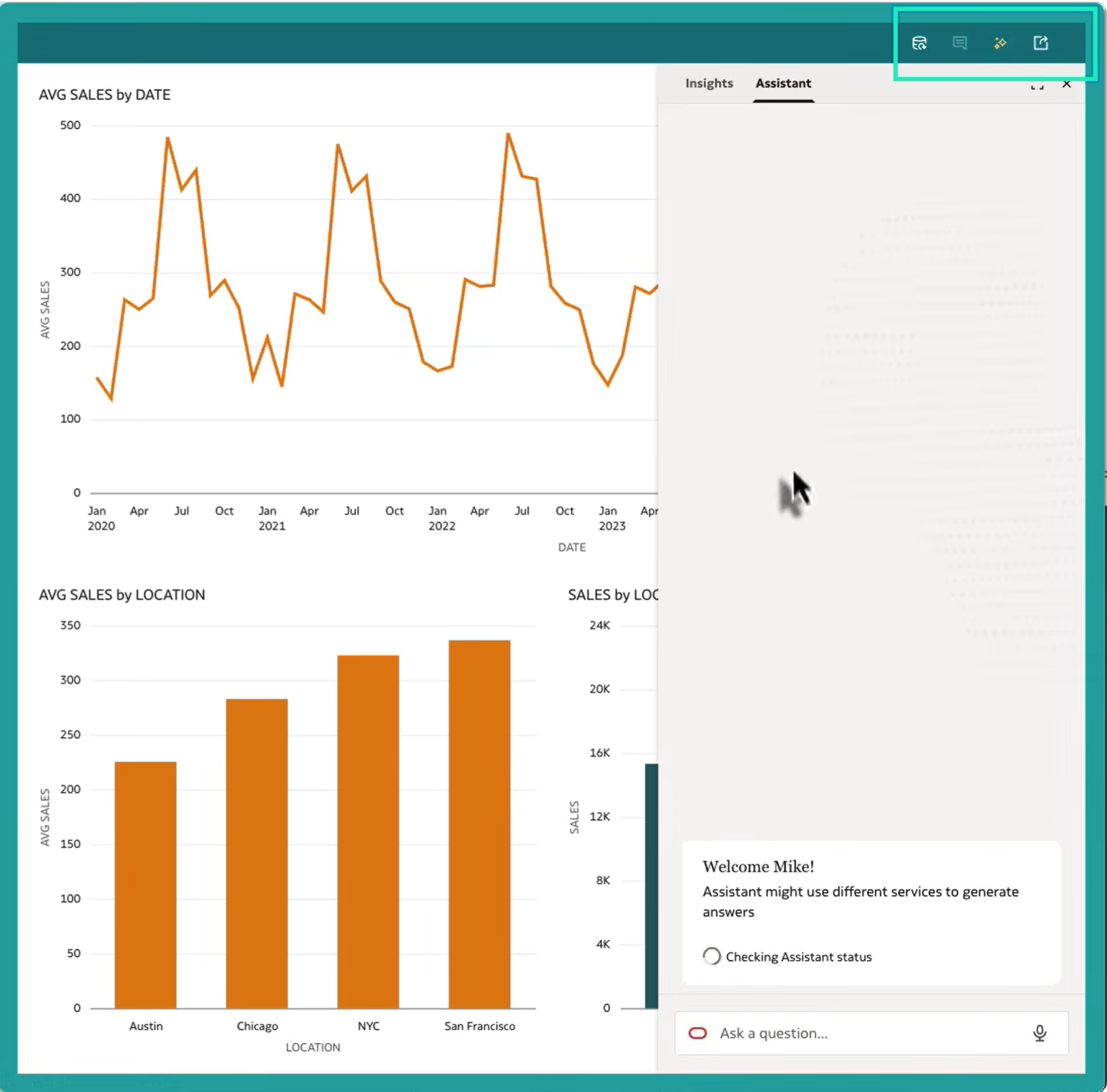
Figure 35: Embedded workbook header with the Refresh Data, Notes, Insights, and Export options
This feature brings embedded workbooks much closer to the native OAC experience, giving users interactivity and AI-driven insights without leaving the application they’re working in, whilst authors keep full control over the available options from a single place.
Toggling from Design to Present Mode
Building a workbook usually means switching between several tasks: preparing and blending the data, designing the visualisations, and configuring how consumers will experience the final result. Until now, these tasks were split across the Data, Visualize, and Present sections displayed at the top of the workbook editor. In this release, Oracle has introduced a unified workbook authoring experience that brings visualisations, presentations, and data blending into a single, more connected editing flow.
When you open a workbook in Edit mode, you will notice that the Data, Visualize, and Present sections are no longer visible; their launch points have been moved inside the editor itself:
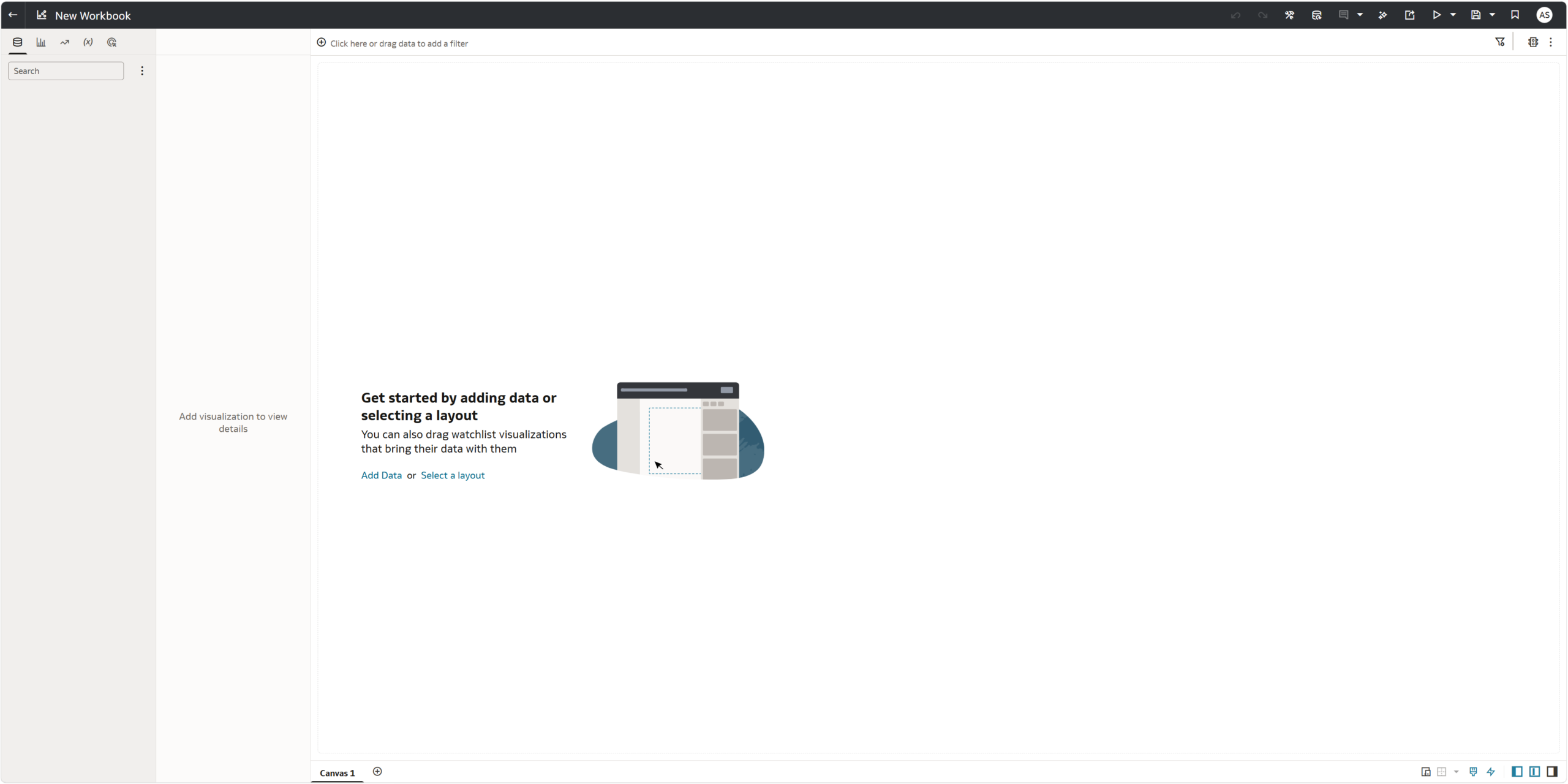
Figure 36: Workbook editor without the Data, Visualize, and Present sections
Launching the Present Workspace
The launch point for Present is now the Preview menu. To configure the consumer experience:
- Click on the split menu icon next to Preview.
- Select Start Presenting to show the workbook exactly as a consumer would see it, or Configure Presentation to open the Present workspace.
- Configure the consumer experience for the workbook in the Present workspace.
- Click on Return to Editor to go back to the workbook editor:
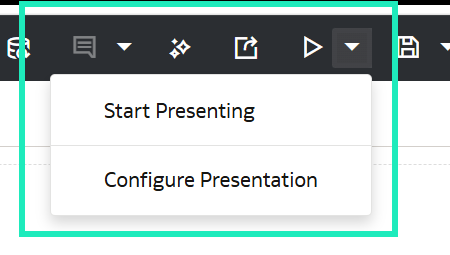
Figure 37: Preview menu options: Start Presenting and Configure Presentation
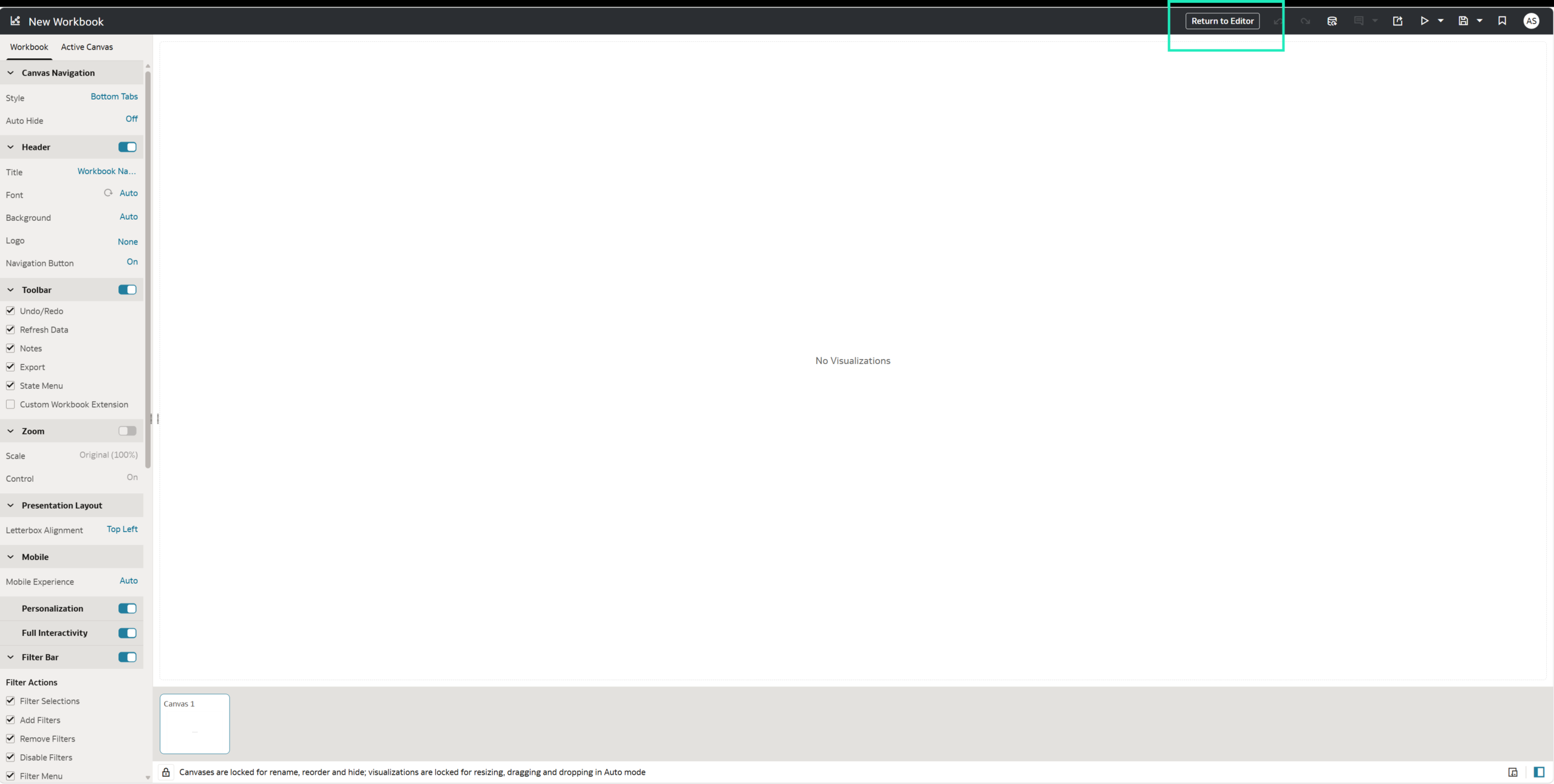
Figure 38: Present workspace with the Return to Editor option
Accessing the Data Workspace
The Data workspace follows the same logic, and its launch point is now in the overflow menu of the editor:
- Open the overflow menu in the Data pane of the workbook editor.
- Select Manage Data Blending Diagram to open the Data workspace.
- Review and adjust how the datasets in the workbook are blended.
- Click on Return to Editor to go back to the workbook editor:
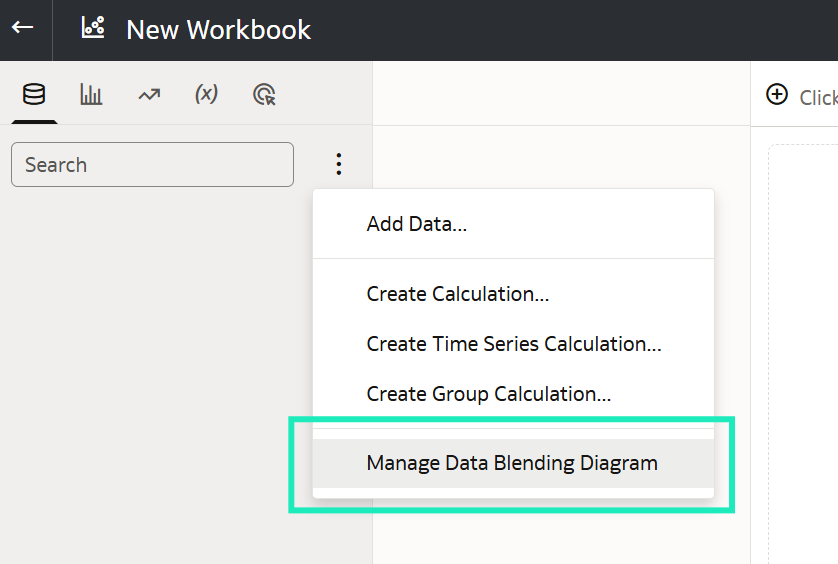
Figure 39: Manage Data Blending Diagram option in the overflow menu
This feature reduces the back-and-forth for authors, who now stay in the editor and only step into the Present or Data workspaces when needed, making the authoring flow faster and more intuitive. As this update changes a familiar part of the interface, it is also worth updating any internal training material that still refers to the old sections.
Conclusion
The Oracle Analytics Cloud September 2026 update delivers a comprehensive set of enhancements that further strengthen the platform’s capabilities across AI, embedded analytics, authoring, and data preparation.
On the AI side, AI Descriptions give the AI Assistant business context that column names alone cannot carry, as the test with the B2B, P1, and urgent questions showed, and the Expression Assistant creates expressions for filters from natural language requests. Authors can also decide whether the Insights panel opens by default, whilst each user chooses whether it overlays the workbook or docks beside it. On the embedded analytics side, the new header bar and visualisation toolbar options, fully controlled from the Present workspace, bring interactivity, export options, and AI-driven insights to workbooks embedded in external applications. Finally, from the authoring point of view, the unified Design-to-Present experience helps to move between visualisation, presentation, and data-blending tasks.
Here at ClearPeaks, we will continue to monitor and analyse each OAC release to help you to understand and use these new capabilities. If you would like to explore how these features could be applied to your environment, get in touch with our team of certified Oracle experts today.