
03 Sep 2025 Analysing Web Application Performance & Accessibility with Google Lighthouse
Web applications are one of the main ways in which people interact with technology, so performance and accessibility are key to providing a positive user experience. Accessibility is becoming an increasingly important factor, now required by governmental organisations worldwide, including the European Commission and other EU entities.
This is especially important for data-driven applications, which often involve dynamic content and complex data-loading workflows. Considering these aspects at every stage helps to deliver a more responsive, reliable product, whilst also giving users the smooth experience they expect.
In this article we’ll explore how to audit a web application with Google Lighthouse, a powerful, free, open-source tool. We’ll look at what it analyses, the insights it provides, and how to address some of the issues highlighted by its reported metrics.
How Can We Use Google Lighthouse?
Google Lighthouse is built into the desktop version of Google Chrome’s developer tools; it can also be installed as a Chrome Web Store extension or accessed via GitHub. Alternatively, there’s an online version at PageSpeed Insights.
After running the analysis, Lighthouse generates an audit report headed by a summary of the core metrics Google employs to benchmark performance and visual stability:
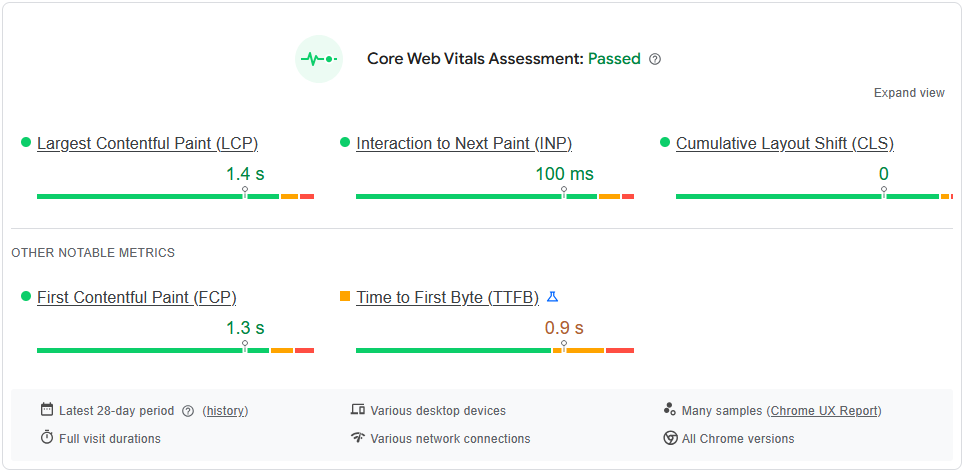
Figure 1: Sample Google Lighthouse Core Web Vitals Assessment

Figure 2: Sample Google Lighthouse Scores and Metrics Overview
Lighthouse Scores Overview
As we have seen, Lighthouse evaluates a site across multiple dimensions, grouping results into different scores to provide a comprehensive view of how a site performs. As Google takes a procedural and periodic approach to these audits, Lighthouse also lets you track the history and evolution of scores over time.
Together, the reported scores make a complete audit:
- Performance: Measures certain Core Web Vitals, a set of metrics that Google considers the most critical for usability and user experience.
- Accessibility: Assesses supplementary features that enhance the user experience for those relying on assistive technologies like screen readers.
- Best practices: Assesses whether best practices are applied correctly, from overall site structure to optimal asset handling.
- SEO (Search Engine Optimisation): Verifies that key practices are in place to ensure the site is search-engine friendly, making it easier to index and rank.
Key Web Performance Metrics
- First Contentful Paint (FCP)
Measures the time from the initial HTTP request until the first visible element is rendered on the page.
- Often slowed down by large JavaScript and CSS files, or sluggish server response times.
- Splitting and deferring the load of non-critical JavaScript chunks (especially in JS-heavy frameworks), minifying resources, and optimising the server are effective ways to reduce FCP and improve load performance.
- Largest Contentful Paint (LCP)
Measures the time from the initial HTTP request until the largest visible element is rendered in the page.
- Usually affects big banners, background images, or lazily loaded content sections.
- Improved in the same way as FCP, with a focus on optimising the largest element being rendered.
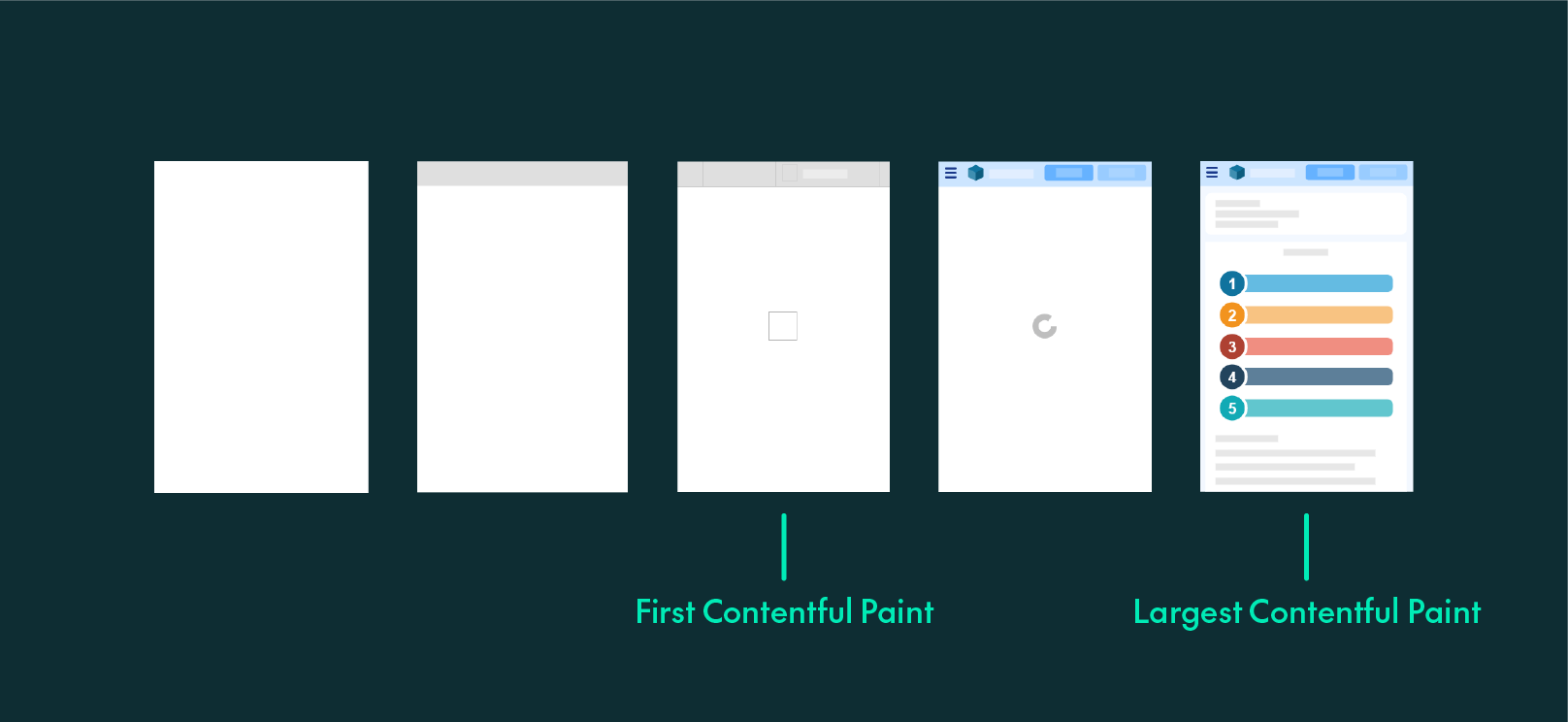
Figure 3: Flow of Browser Contentful Paints
- Cumulative Layout Shift (CLS)
Measures the number of shifts in the page layout caused by dynamically loaded content. These shifts can be critical, as users may click the wrong element if buttons move suddenly.
- Addressed by reserving space for content in advance, generally by setting explicit width and height attributes for images and other elements.
- Total Blocking Time (TBT)
Measures the total time from FCP during which the browser’s main thread is blocked for more than 50 milliseconds.
- Long tasks make the page unresponsive to user input, so high TBT creates the impression that an application is slow or malfunctioning.
- Speed Index (SI)
Represents how quickly a page appears to load, based on the flow of elements becoming visible over time; it is calculated by recording a video of the page load and computing the visual progression frame by frame.
Key Accessibility Features in Lighthouse
Lighthouse also reports on standard and modern accessibility features, highlighting whether they are present or missing. These checks follow the Web Content Accessibility Guidelines issued by the World Wide Web Consortium.
As mentioned earlier, compliance with these guidelines is mandatory for EU services and strongly recommended as part of the digital inclusion efforts by the European Commission, amongst others.
Accessible and Rich Internet Applications (ARIA)
Many of the accessibility checks Lighthouse performs look for the presence and correctness of ARIA attributes. These are a set of standardised HTML attributes that enhance accessibility for users relying on screen readers and assistive technologies.
These attributes supplement the interactive components of a page built with generic HTML elements. They can add meaning and specify additional information directed to assistive technologies.
Overall, Lighthouse checks for:
- The proper and compatible use of aria-* and role
- Non-use of deprecated attributes.
- The presence of ARIA attributes in custom (non-semantic) controls. For instance, a generic <div> element being used as a button without the semantic <button>
Whenever possible, developers should use semantic HTML elements; as part of the HTML standard, browsers already support accessibility features for them.
One of the most basic examples of semantic elements is the use of landmark HTML elements to structure a page:
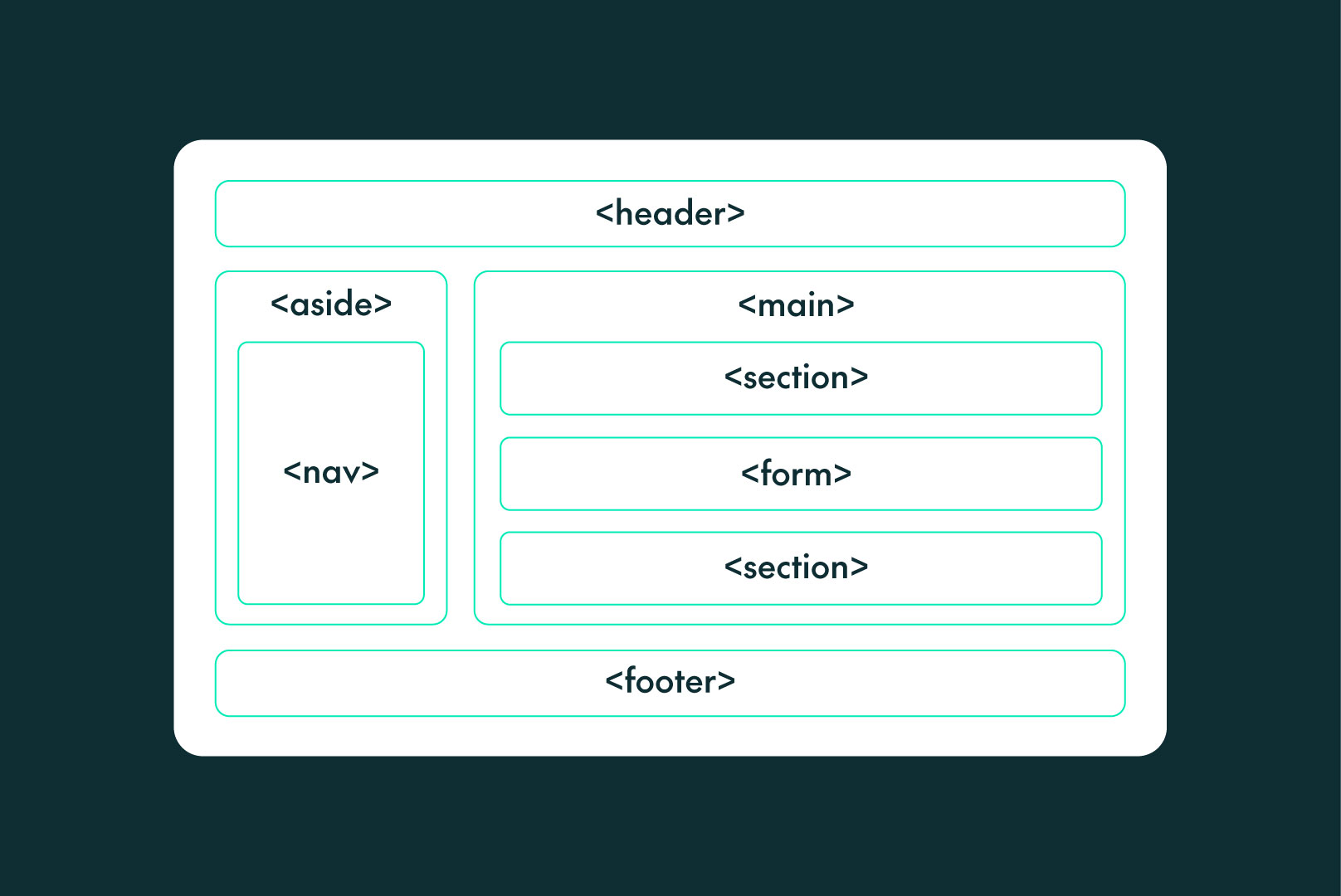
Figure 4: Page Layout with Semantic HTML Elements
Colour Contrast Guidelines
One of the many other features Lighthouse checks for is sufficiently high contrast ratios between a page’s elements, ensuring compliance with the Web Content Accessibility Guidelines (WCAG).
These guidelines define a set of standardised minimum ratios between the colours of a given element’s foreground and background content, both for text and graphical components. Whilst Lighthouse checks for compliance at the intermediate (AA) level, the minimum values differ according to the level of WCAG compliance:
- A (basic accessibility)
- AA (strong accessibility)
- AAA (excellent accessibility)
Naturally, higher levels require higher colour contrast ratios.
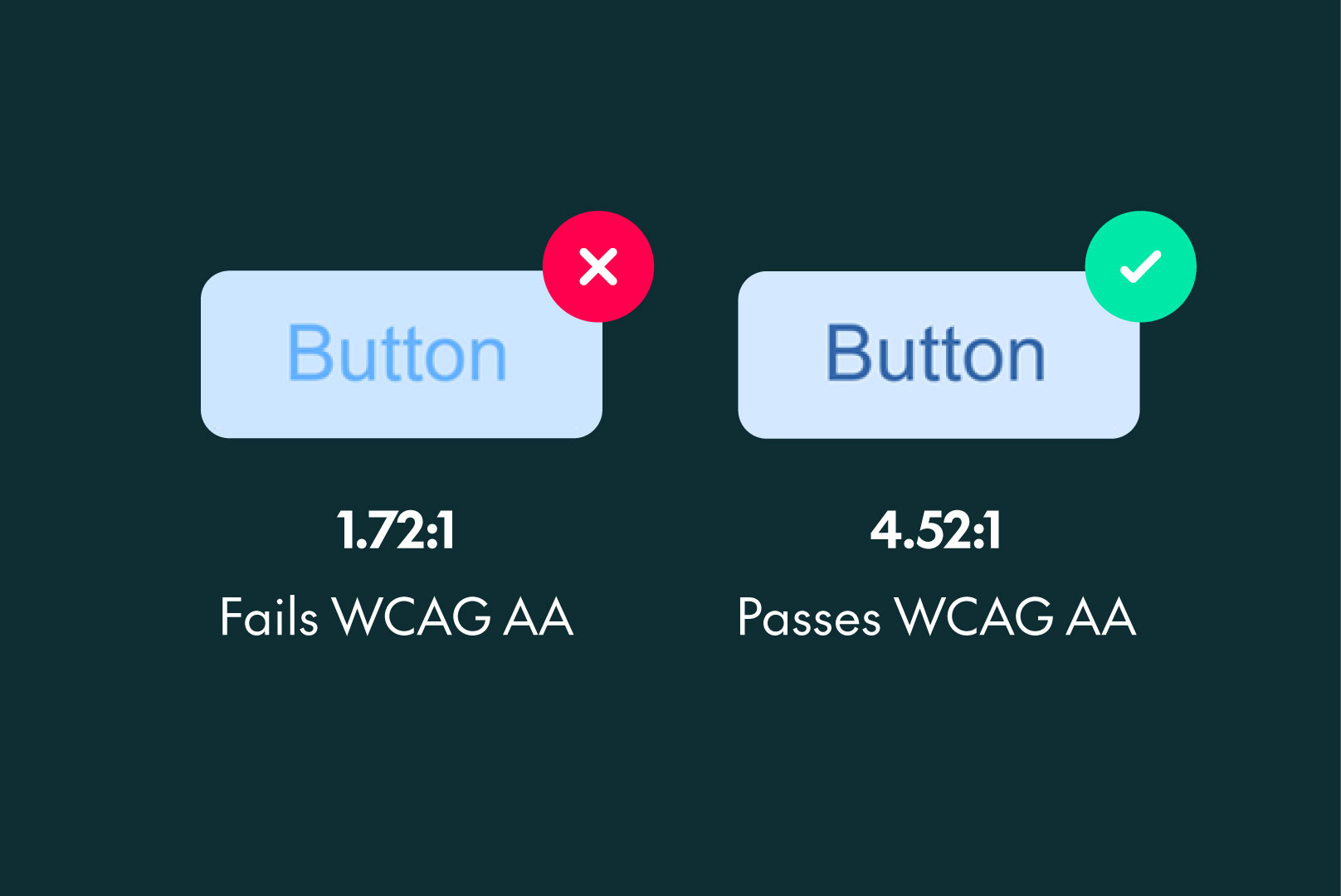
Figure 5: Colour Contrast Ratios Comparison
Best Practices
Lastly, Lighthouse also checks and groups a number of good practices across different aspects of a page. Depending on the type and purpose of the website, these are generally recommended improvements that enhance robustness, compatibility, and overall quality.
Let’s take a quick look at some of the recommendations Lighthouse checks for:
User Experience
- Serving images at a resolution appropriate to their size.
- Featuring adequate <meta> information, especially for mobile.
- Ensuring font sizes are legible, with at least 60% of mobile text being 12px or more.
Browser Compatibility
- Using a complete standard HTML document format, including the DOCTYPE declaration.
Trust and Safety
- Running HTTPS instead of HTTP.
- Adding recommended HTTP headers related to different security policies for browsers in your server’s responses: HSTS, COOP, CSP, etc.
General
- Minifying JavaScript and CSS, and avoiding unused or redundant chunks.
- Avoiding the use of third-party cookies.
- Allowing pasting into all input fields.
- Avoiding unnecessary logs to the console.
- Avoiding requesting for geolocation and notifications permissions on page load.
Having Lighthouse audit a site and reviewing the best practices report is the best way to explore these checks in more detail.
Conclusion
Google Lighthouse is a powerful, free tool that can help you to improve your application significantly. Running regular audits helps track progress over time and keeps applications aligned with the latest standards.
Bearing all these factors in mind when developing web applications is fundamental to creating the best possible product for your users, while complying with standard guidelines that reduce barriers and open up market opportunities.
Here at ClearPeaks, we combine deep technical expertise with hands-on experience to help organisations to meet these standards. From optimising web performance and accessibility to aligning with security best practices, our tailored solutions ensure that your applications are robust, user-friendly, and future-proof. If you’re looking to build modern applications or need expert guidance to enhance your existing platforms, the ClearPeaks team is here to help! Contact us today to see how we can support your business with professional solutions that guarantee the best possible experience for your team.