

17 Sep 2025 Power BI Refresh Framework: Ensuring Reliable Dataset Updates with Azure Data Factory
In our previous blog post Building A Self-Service Enterprise Data Platform: A Real-World Implementation with Azure and Databricks, we explained how we implemented various metadata-driven frameworks for our customer’s enterprise data platform (EDP). One of these frameworks handled dashboard refreshes in Power BI.
It’s common practice to schedule automatic refreshes for datasets behind Power BI dashboards, and while this approach works in many cases, it can sometimes lead to issues, such as:
- The scheduled refresh may trigger before data processing is complete, resulting in incomplete or outdated information in reports.
- Processing pipelines might have failed, compromising the tables that populate the semantic model.
In this blog post, we’ll present a solution we developed for one of our customers to refresh Power BI datasets intelligently, triggering refreshes only after processing pipelines have completed and accounting for upstream dependencies.
Solution Overview
In this section, we’ll present our proposed solution to address these problems at a conceptual level. First, we’ll explain how the Power BI refresh system works, and then how we manage the dependencies.
Power BI Refresh Pipeline
Microsoft provides the Microsoft Graph API to interact with most of its services, and in this case there are a couple of endpoints that allow you to refresh Power BI datasets.
For our use case, we’ll be working with the POST endpoint https://api.powerbi.com/v1.0/myorg/groups/<workspaceId>/datasets/<datasetId>/refreshes to refresh Power BI datasets. As this endpoint is asynchronous, we also need to perform a GET request to the same endpoint to check the refresh status. The most recent refresh will be the one just executed. We’ll monitor its status until completion. Both API calls require an OAuth access token for Microsoft Graph.
The entire refresh process will be logged, starting with the POST execution status and followed by the GET response from the refresh, for audit purposes.
Our pipeline will look like this:
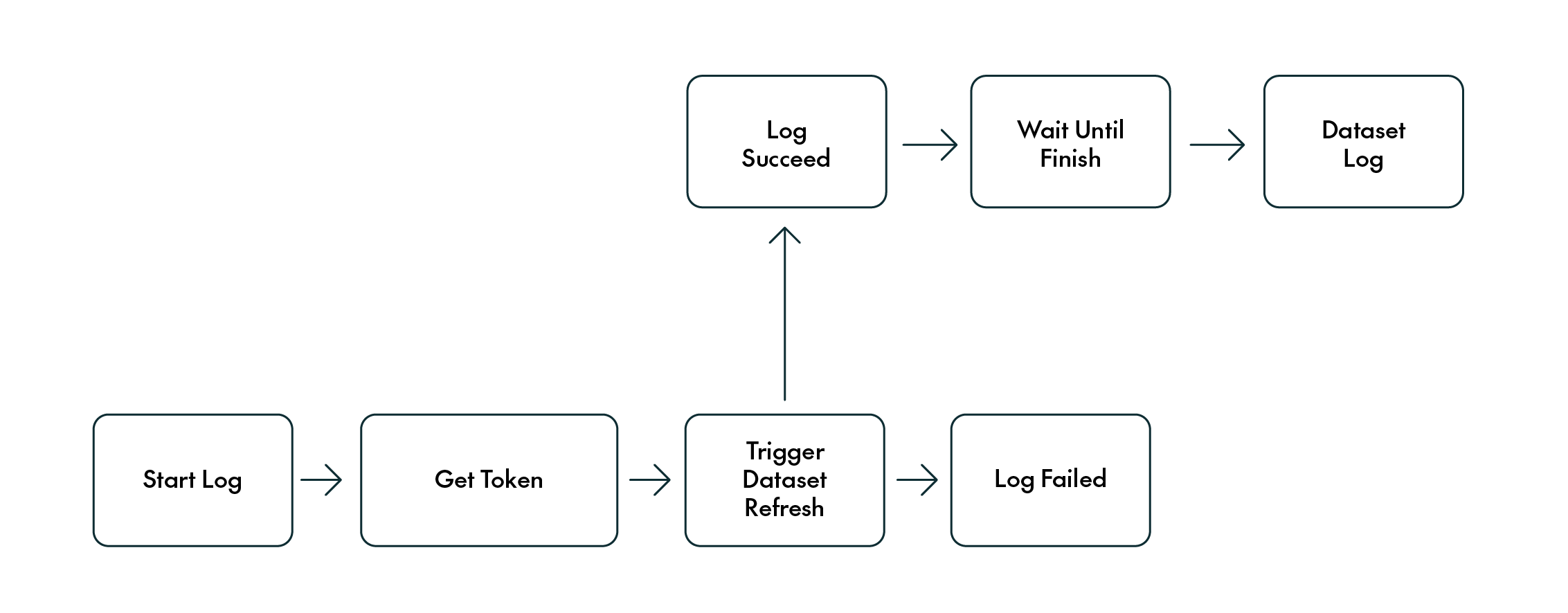
Figure 1: Overall diagram
Dependencies Pipeline
We also implemented a process to check the status of upstream dependencies before triggering the Power BI refresh pipeline, ensuring that a dataset is refreshed only if all required dependencies have successfully completed. By “dependencies”, we mean any data sources (often tables) that a dataset relies on.
How do we keep track of these dependencies? There are several ways to do this, but here at ClearPeaks we recommend using a control table: this table can be stored either in a relational SQL database or in a lakehouse, for example, in Delta Lake format. The table stores both required and optional metadata. At a minimum, it should include the Power BI Workspace ID and Dataset ID. Optionally, it can also store the dataset or dashboard name, as well as a flag to enable or disable automatic refresh. This flag is especially useful for managing execution at scale or for temporarily excluding certain datasets from automated processes.

Figure 2: Dataset iteration
The dependencies pipeline queries this control table to retrieve all the datasets to be refreshed, filtering out those with failed dependencies. Dependency status is tracked in a log table, where the execution results of each dependency are recorded as they are processed.
Pre-Configuration Steps
Before integrating Azure Data Factory with Power BI, a few prerequisites need to be met.
Creating an App Registration
First, we’ll need to register an application in Azure Active Directory (now called Microsoft Entra ID), which Azure Data Factory will use to authenticate with Power BI and perform dataset refreshes. Following best practice, automated tasks should always be executed by service principals, in this case Azure app registrations.
This app registration must be granted the delegated API permission Dataset.ReadWrite.All (or SemanticModel.ReadWrite.All if we’re using Microsoft Fabric). Once the permission has been added, click on Grant admin consent:
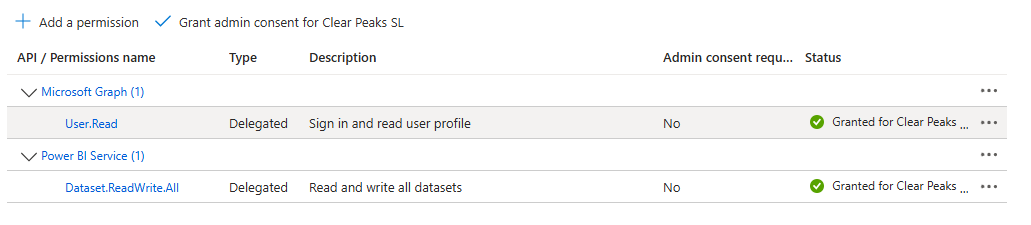
Figure 3: API permissions + Grant consent
Next, we’ll generate a client secret and store the value securely, as it cannot be retrieved later. We’ll also need to note down the app registration’s Tenant ID and Client ID, both available in the app’s overview pane.
Allow Service Principals Access to Power BI API
The next step is to create an Azure Security Group and add our registered app to it. This is necessary to enable API calls from Power BI, as we can see in the screenshot below.
With tenant-level admin access in the Power BI service, go to the Admin portal, enable the setting that allows service principal API access, and add the Azure Security Group. Power BI only supports adding groups, so this step is essential:
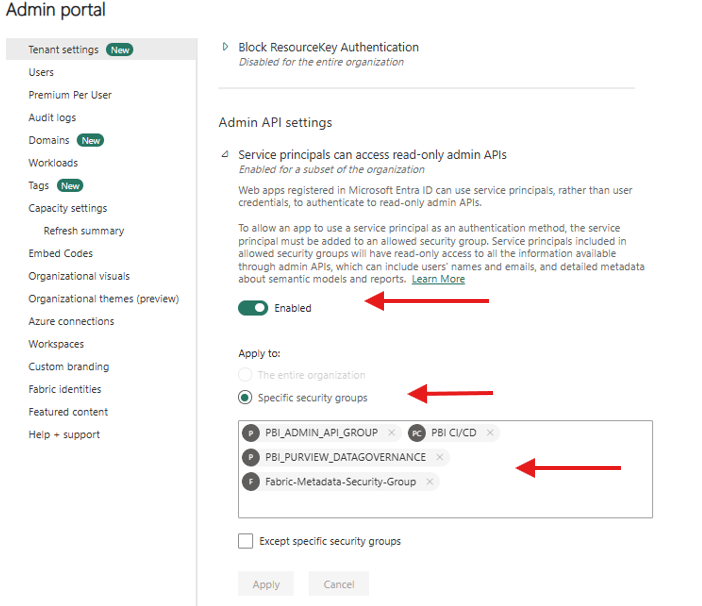
Figure 4: Tenant settings Power BI configuration
Grant Contributor Access to Workspaces
The final step is to grant each service principal Contributor access to the relevant Power BI workspaces that contain the semantic models with the datasets to be refreshed.
Implementation in Azure Data Factory
With the solution outlined and app registration configured, we can now move on to the implementation, using Azure Data Factory and SQL Server, following a metadata-driven approach supported by control tables.
Dependencies Pipeline (Master)
The pipeline begins by querying the control table, which holds the details of each dataset to be refreshed, using a Lookup activity in which this information is cross-referenced with the processing logs table (outside the scope of this article, but for context, it records information such as table name, status, and process date). This step ensures that all dependencies show a Succeeded status before the process continues:
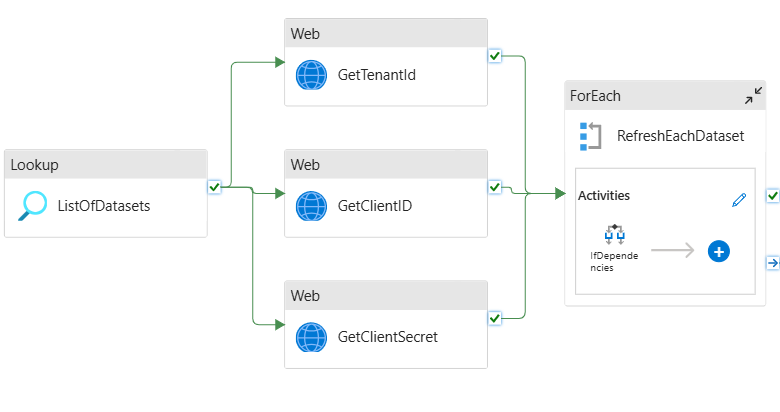
Figure 5: Dependencies control
For all datasets that meet the above conditions, a list is generated and passed into a ForEach activity. Within this loop, the “child” pipeline (the Power BI Refresh pipeline) is triggered using an Execute Pipeline activity.
Before this step, we retrieve the app registration details (Tenant ID, Client ID, Client Secret) from the Key Vault where we stored them. Using Key Vault is the recommended approach for secure credential management, as it’s highly practical when working across multiple environments. Different app registrations can be stored in each environment’s Key Vault under the same secret name.
Power BI Refresh Pipeline (Child)
Once inside the child pipeline, we start by logging its execution through a stored procedure that writes part of the log information into an SQL Server table. Next, we execute a Web activity to obtain an authentication token, using the app registration details. Once the token has been retrieved, another Web activity triggers the Power BI dataset refresh, using the bearer token for validation in the request header. This refresh request is asynchronous, so we need to validate whether the refresh completes successfully or not with another API call:

Figure 6: Power BI refresh pipeline
The status of the refresh trigger is recorded in the log table using a stored procedure. If this initial asynchronous request is successful, the pipeline proceeds with an Until activity, which waits until the dataset refresh is fully completed. This check is performed by running an API call to the same endpoint as before (https://api.powerbi.com/v1.0/myorg/groups/<workspaceId>/datasets/<datasetId>/refreshes), but using the GET method instead of POST. Once the refresh has finished, the final details of the process are logged using another stored procedure.
In the following sections we’ll delve into more detail about how we implemented these activities!
Web Activity: GetTokenValue
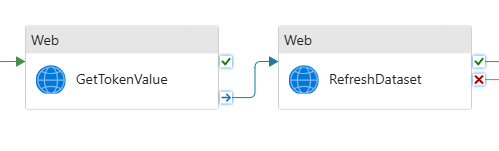
Figure 7: Refresh dataset
To retrieve the authentication token, we’ll use the Tenant ID, Client ID, and Client Secret obtained during the app registration setup.
The GetTokenValue Web activity should be configured as follows:
URL:
@concat(‘https://login.microsoftonline.com/’, pipeline().parameters.TenantId, ‘/oauth2/v2.0/token’)
Method:
POST
Body:
@concat(
    'grant_type=client_credentials&client_id=', pipeline().parameters.ClientID,
    '@', pipeline().parameters.TenantId,
    '&client_secret=', pipeline().parameters.ClientSecret,
    '&scope=https://analysis.windows.net/powerbi/api/.default'
)
Headers:
{
  "Content-Type": "application/x-www-form-urlencoded"
}
This activity will return the access token in the following expression:
activity('GetTokenValue').output.access_token
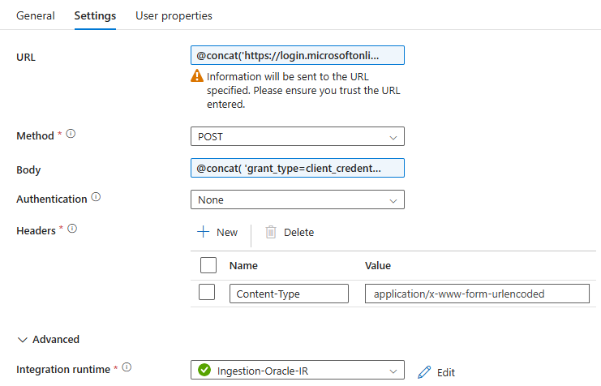
Figure 8: Get Token activity settings
Triggering the Power BI Dataset Refresh
Once we have acquired the access token, we can proceed to trigger the Power BI dataset refresh.
In our case, we implemented a generic refresh (full dataset refresh), equivalent to clicking on the Refresh now button in Power BI. However, it’s worth highlighting the other available refresh types:
- Full dataset refresh (the one we use, described further below)
- Selective refresh (refreshes only specific tables within the dataset)
- Incremental refresh (if the dataset has been configured accordingly)
- Refresh using parameters (more customised refresh scenarios)
The Web activity that makes the POST request to the Power BI REST API is configured as follows:
URL:
@concat(‘https://api.powerbi.com/v1.0/myorg/groups/’, pipeline().parameters.WorkspaceId, ‘/datasets/’, pipeline().parameters.DatasetId, ‘/refreshes’)
Method:
POST
Body:
{
  "notifyOption": "NoNotification"
}
Headers:
{
  "Authorization": "@concat('Bearer ', activity('GetTokenValue').output.access_token)",
  "Content-Type": "application/json"
}
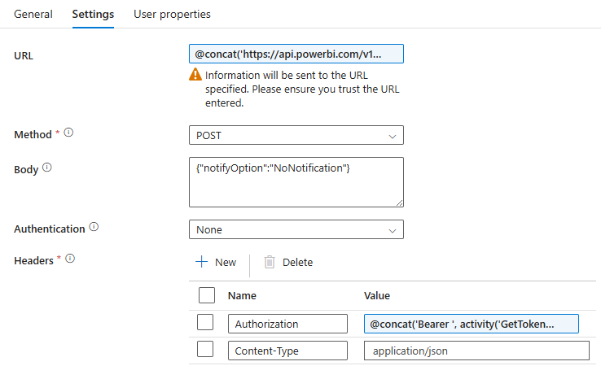
Figure 9: Refresh activity settings
Validate Power BI Refresh Status
After triggering the dataset refresh, it is essential to verify whether the process has been completed successfully. The preceding Web activity only confirms that the refresh request was initiated, but it doesn’t tell us the result.
To address this, an Until activity is used to perform periodic checks with a Web request, similar to the one used to start the refresh. It continuously queries the dataset’s refresh status and keeps iterating until the response indicates either Completed or Failed:

Figure 10: Until
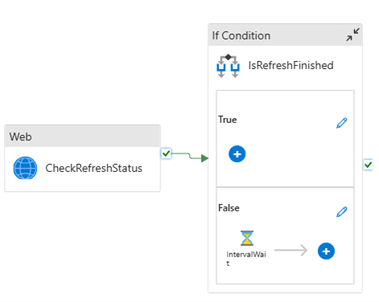
Figure 11: Inside Until
Once one of these terminal states has been detected, the loop ends and the final status is logged in the control table for audit and tracking purposes.
Conclusion
By shifting from scheduled refreshes to a dependency-aware refresh mechanism orchestrated through Azure Data Factory, we can significantly improve the reliability and integrity of our Power BI reports. This approach ensures that datasets are refreshed only after processing pipelines have finished and that the underlying tables have been successfully validated.
Here at ClearPeaks, we’ve implemented this approach across various customers and use cases, and the results speak for themselves: more accurate dashboards, fewer refresh errors, and greater confidence in the insights delivered.
If your organisation is facing challenges with dataset refreshes, data reliability, or reporting accuracy in Power BI, our team can help you design and implement a tailored solution that will help you deliver insights you can trust. Get in touch with us today!